Assign reviewing teams & adjudicators
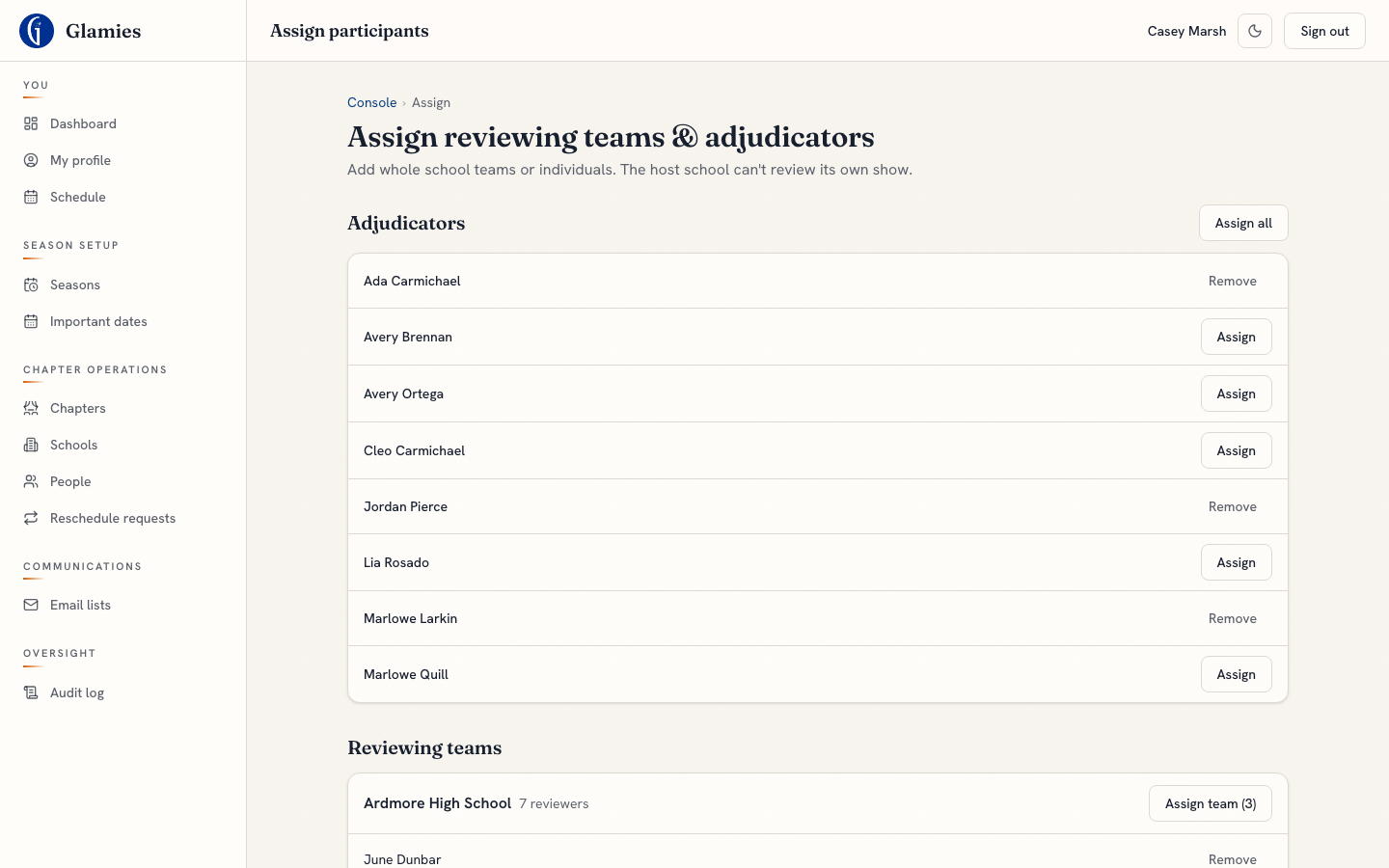
Step 1 — On the performance's Assign page, the chapter admin adds whole school teams or individual reviewers, plus adjudicators, to a show. The host school is automatically flagged ineligible to review its own performance. Almost, Maine already has its Lakemont team and adjudicator pool assigned from the season roster.
Reviewer requests a reschedule
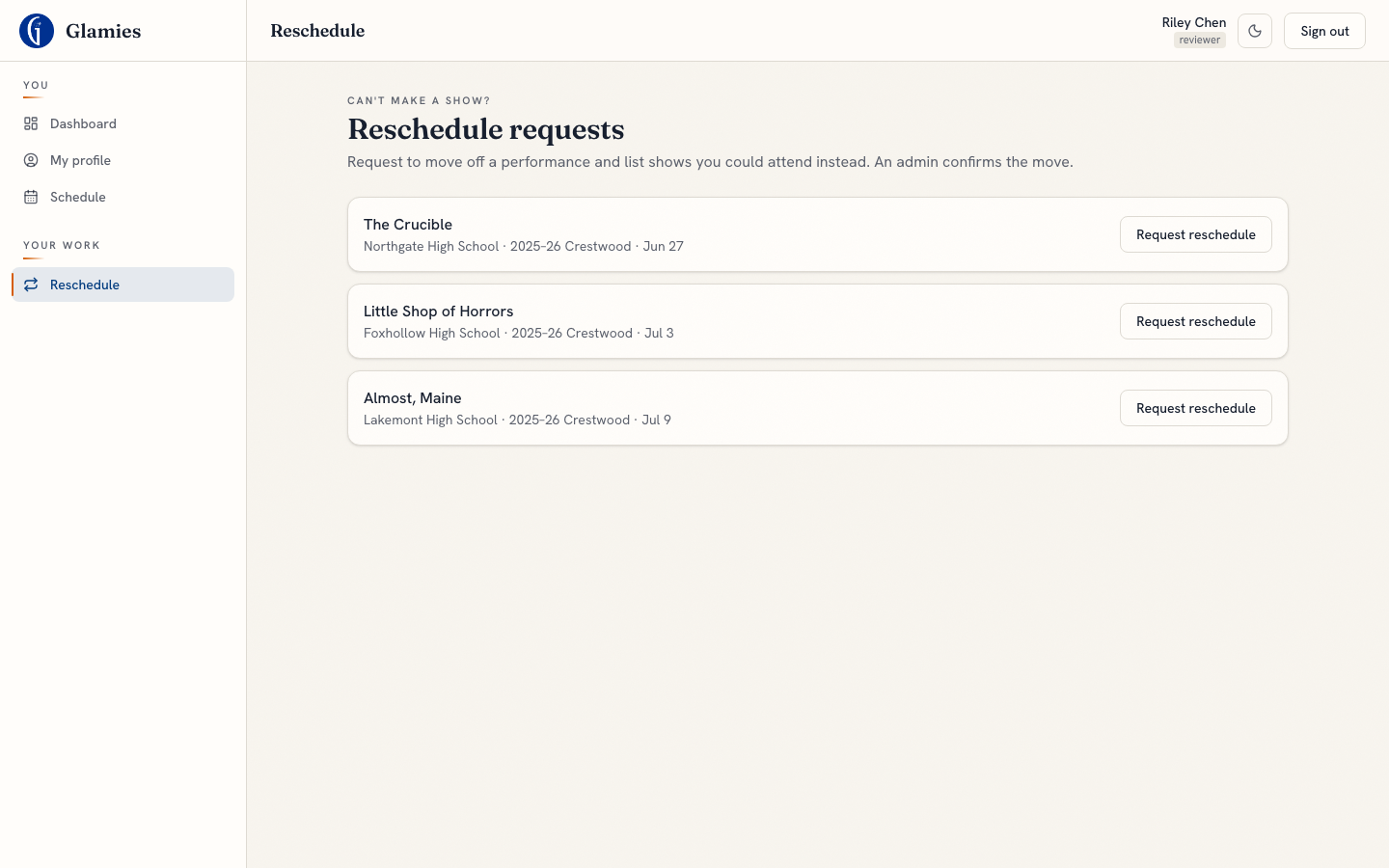
Step 2 — A reviewer who can't make an assigned show opens Reschedule and sees every upcoming assignment. Riley is assigned to The Crucible, Little Shop of Horrors, and Almost, Maine this season.
Reviewer ranks alternative shows
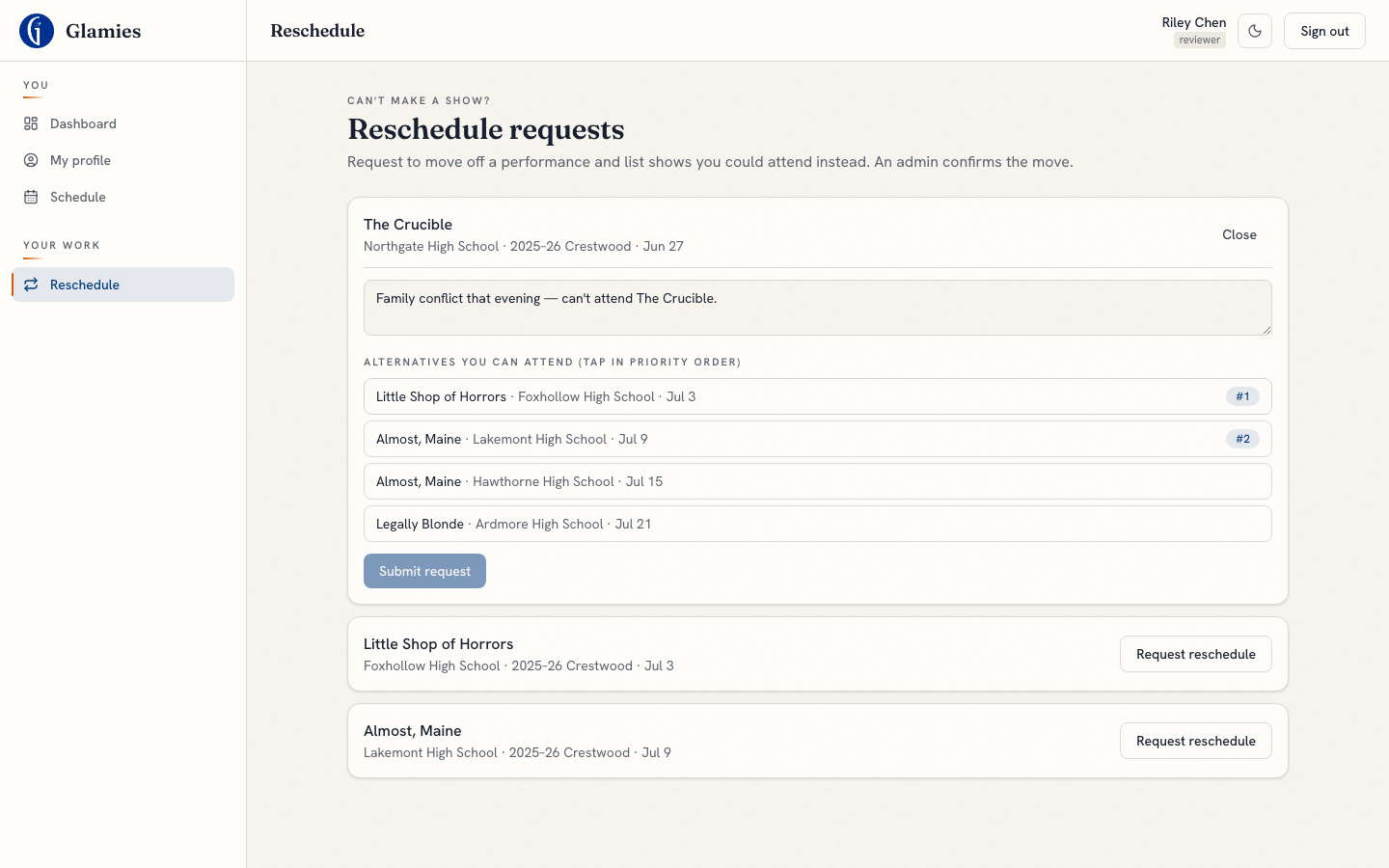
Step 2a — Requesting off a show, the reviewer lists alternative performances they could attend instead, in priority order (tap order = rank badge #1, #2…). This ranked list is what the admin sees when deciding where to reassign them.
Reschedule request pending
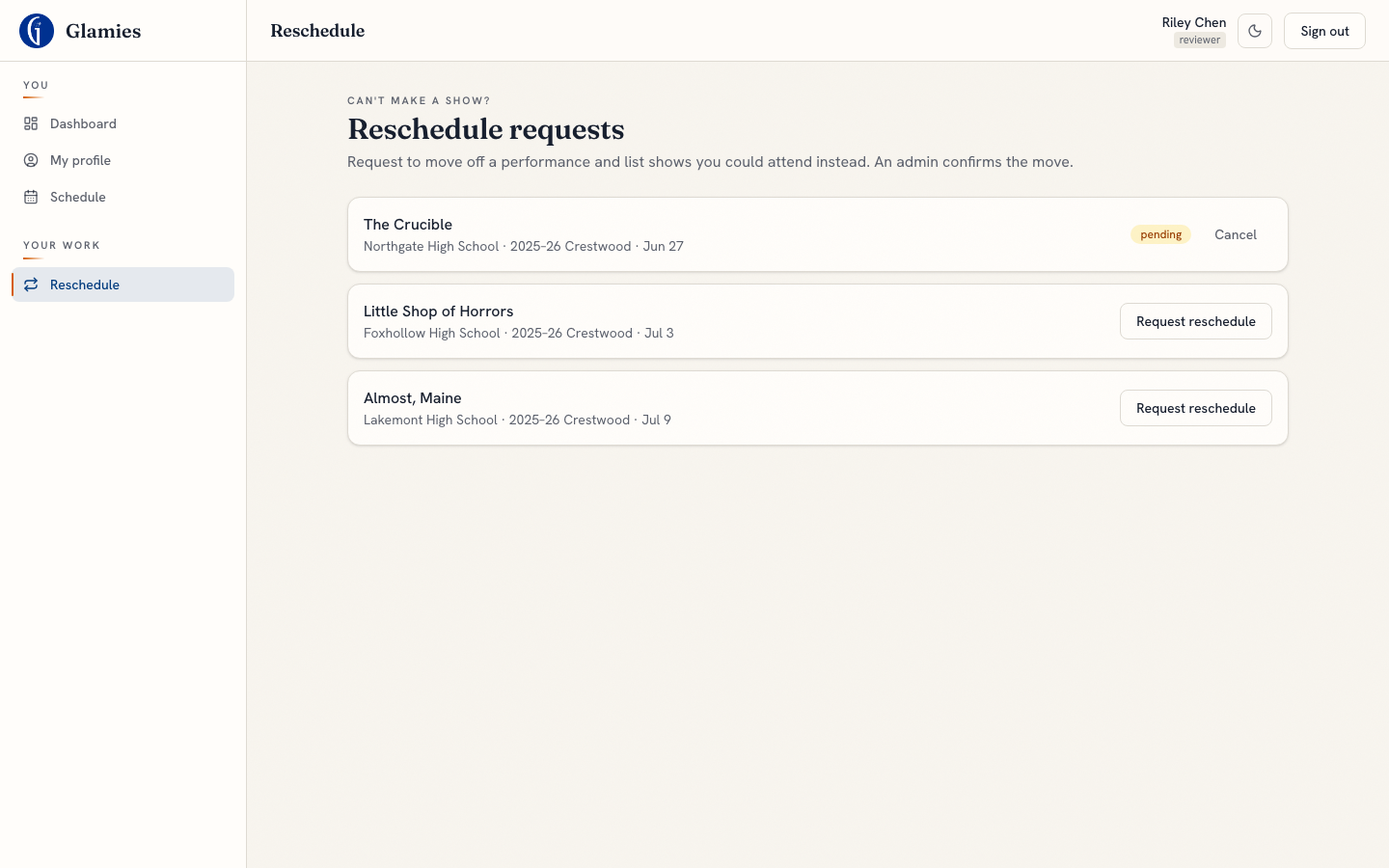
The request now shows a pending status badge on the reviewer's own Reschedule page while it waits for chapter-admin review.
Admin reviews pending reschedule requests
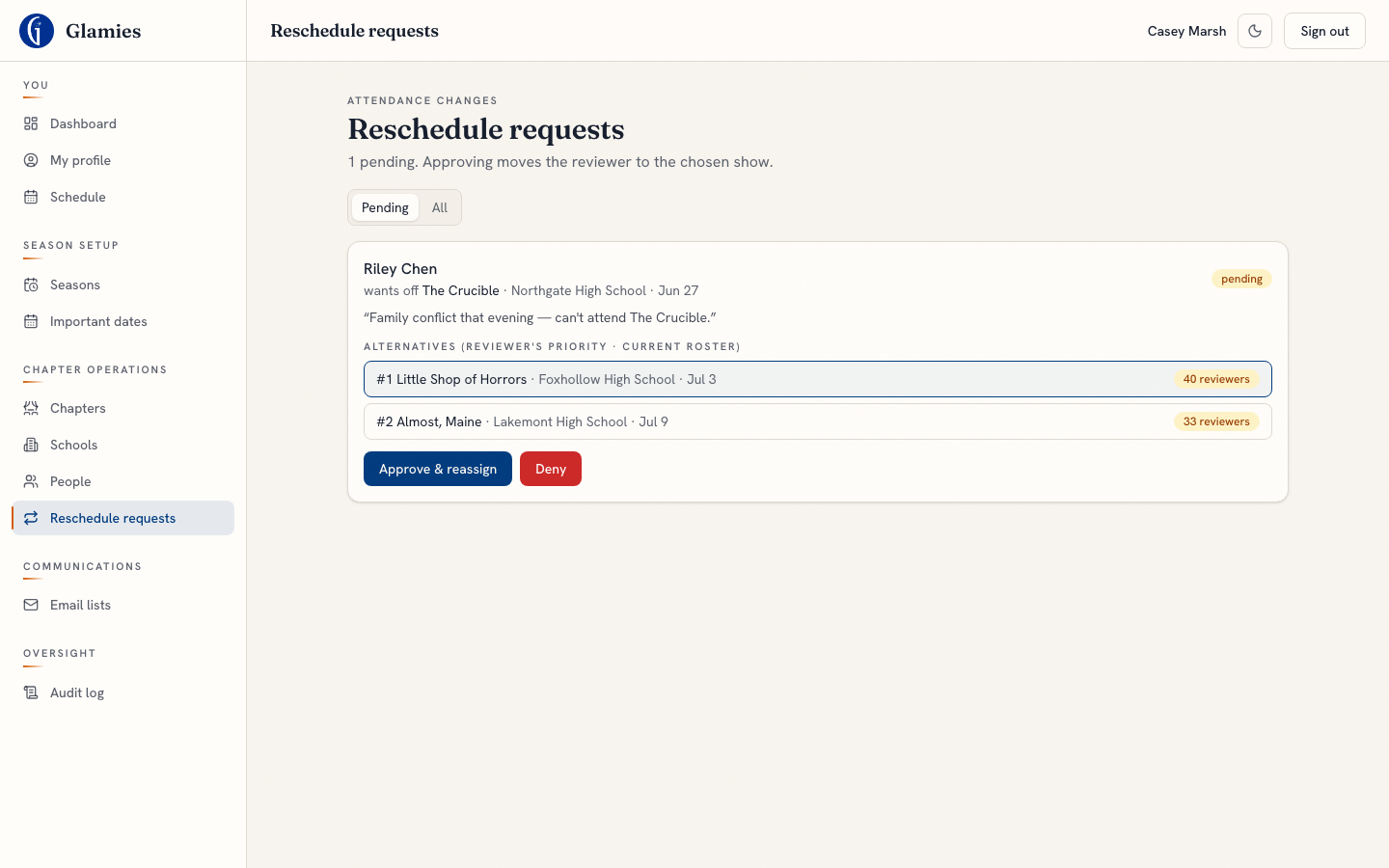
Step 2b — The admin's Reschedule requests queue shows each pending request with the reviewer's stated reason and their ranked alternatives — each alternative annotated with its current roster size, so the admin can avoid overloading one show.
Reschedule approved — reviewer reassigned
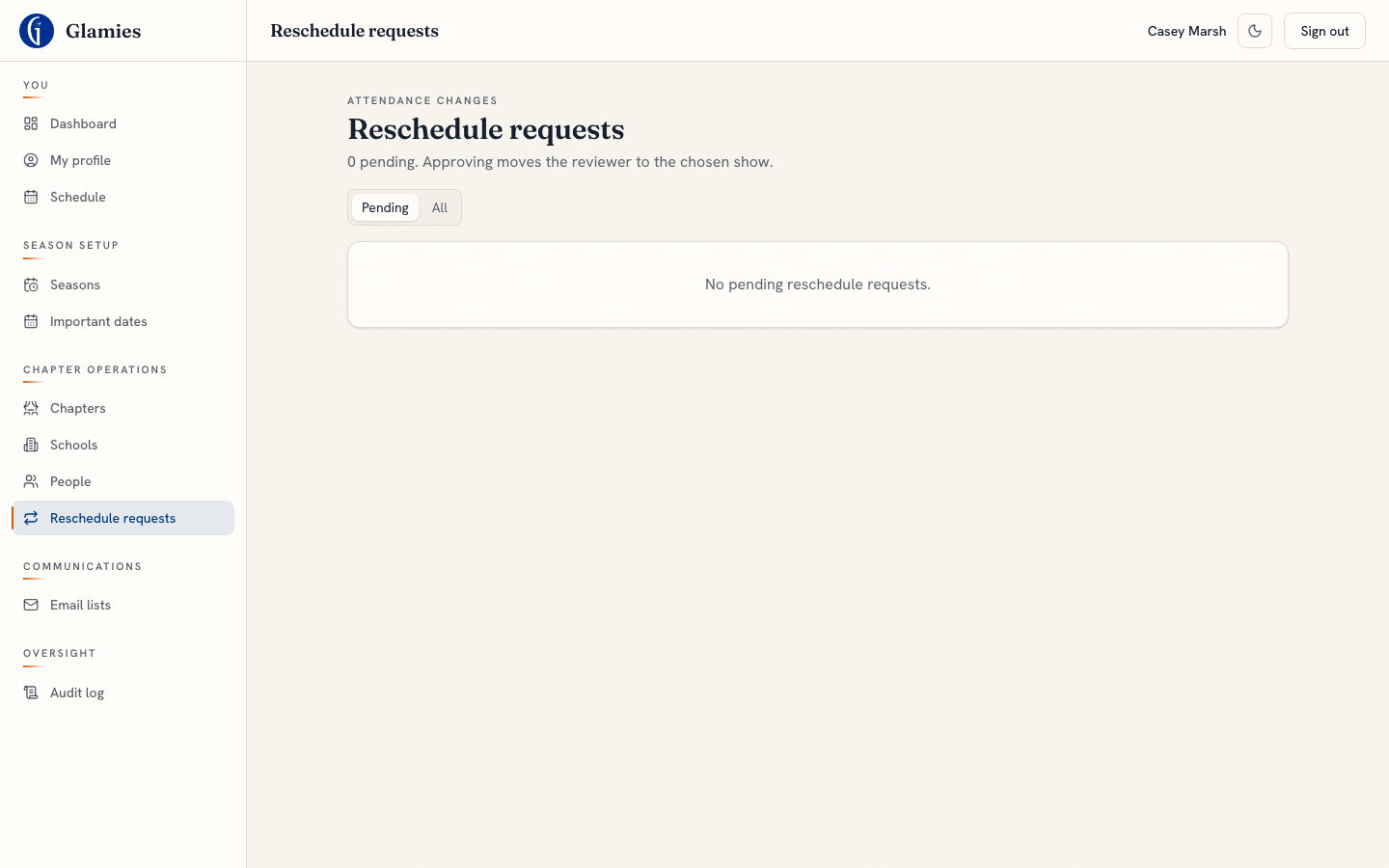
Approving the request moves the reviewer's attendance row to the chosen alternative show. The request list updates and, on the reviewer's side, their assignment now reflects the new performance.
Adjudicator check-in roster
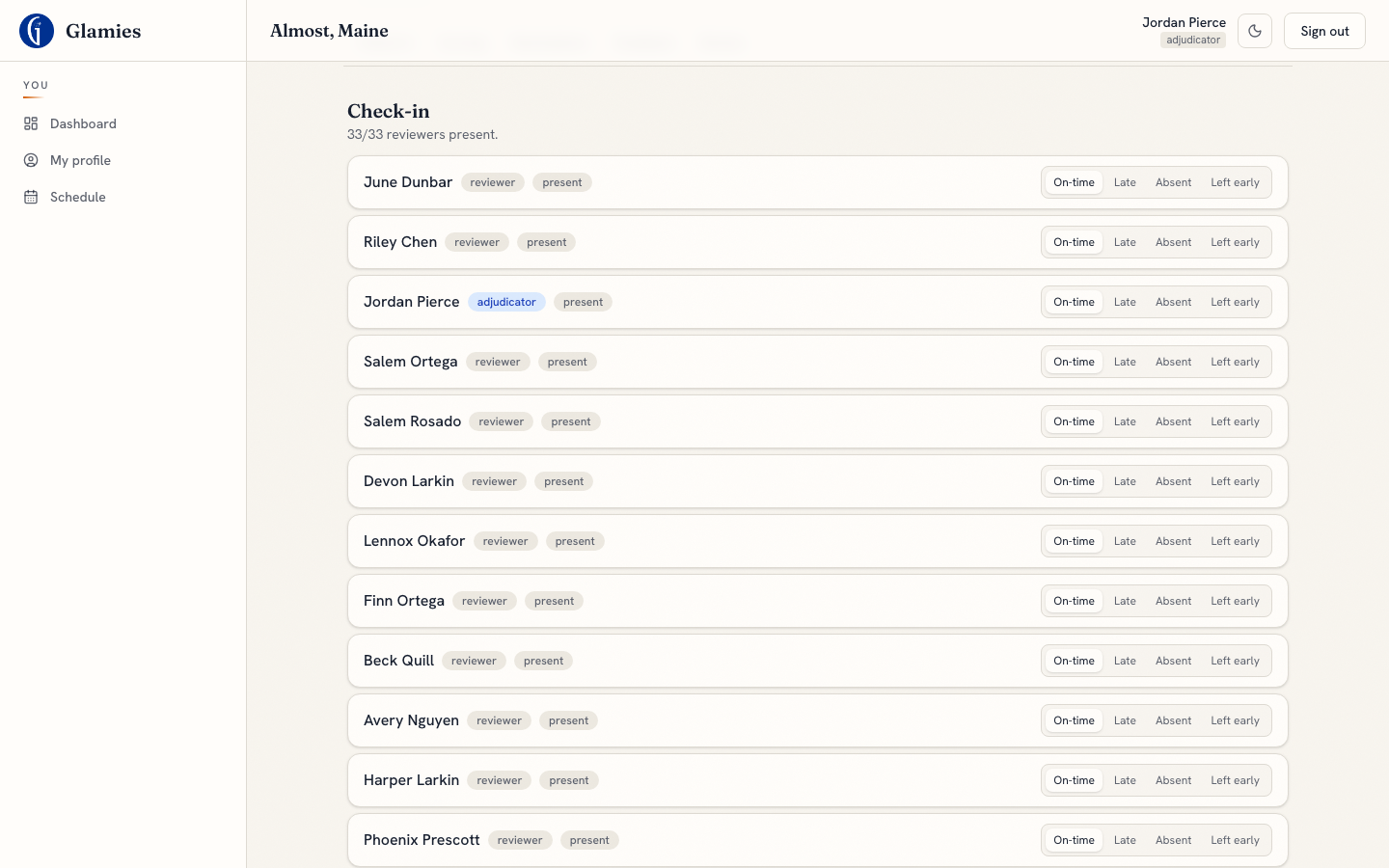
Step 3 — On performance day, the adjudicator's console opens on the check-in roster: every assigned reviewer and adjudicator, with one-tap on-time / late / absent / left-early buttons. This is the in-app replacement for the old paper sign-in sheet.
Roster marked present
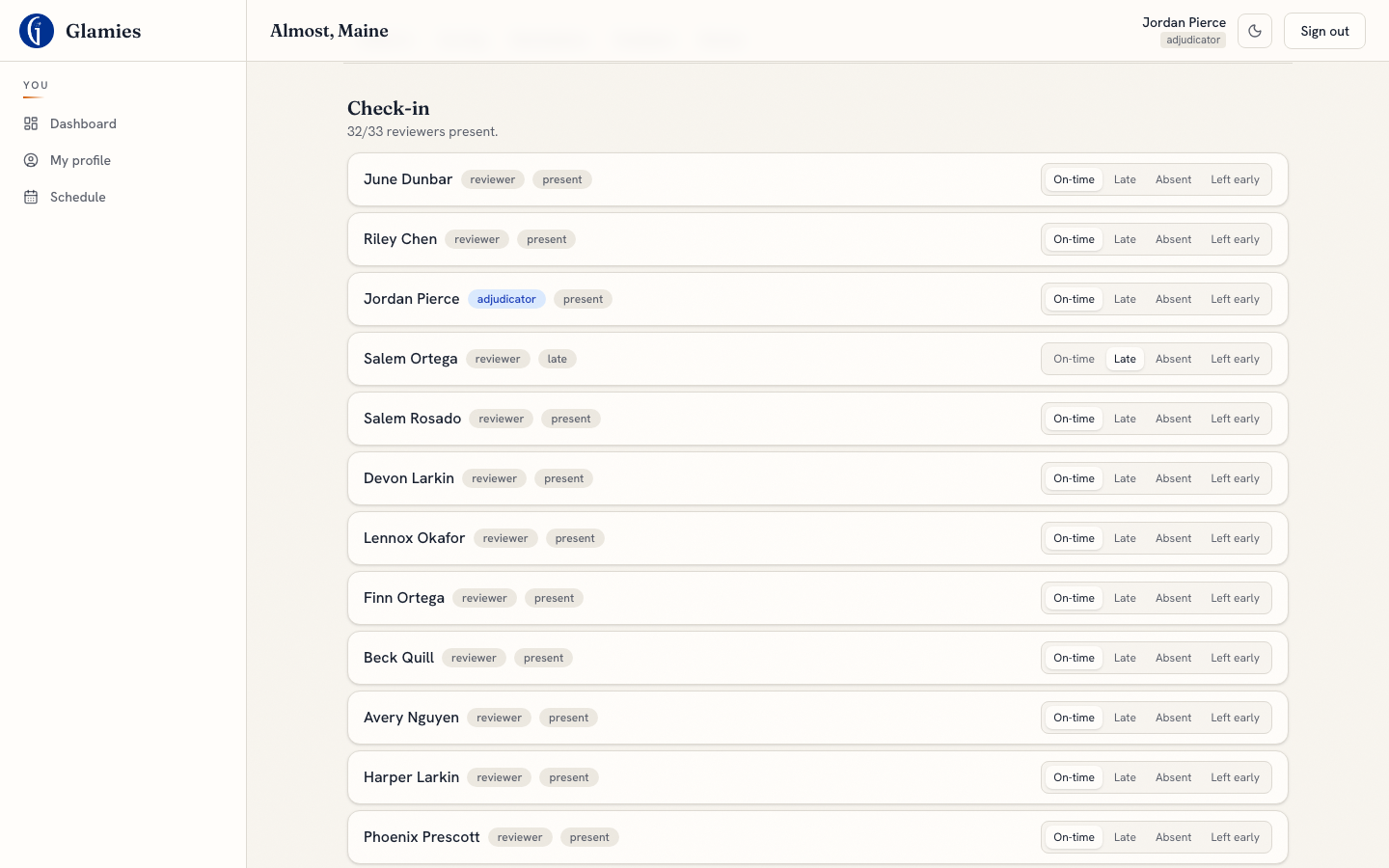
Tapping a status button writes the attendance record immediately (no separate save step) and the header's "present" count updates live.
Adjudicator reviews nominations per category
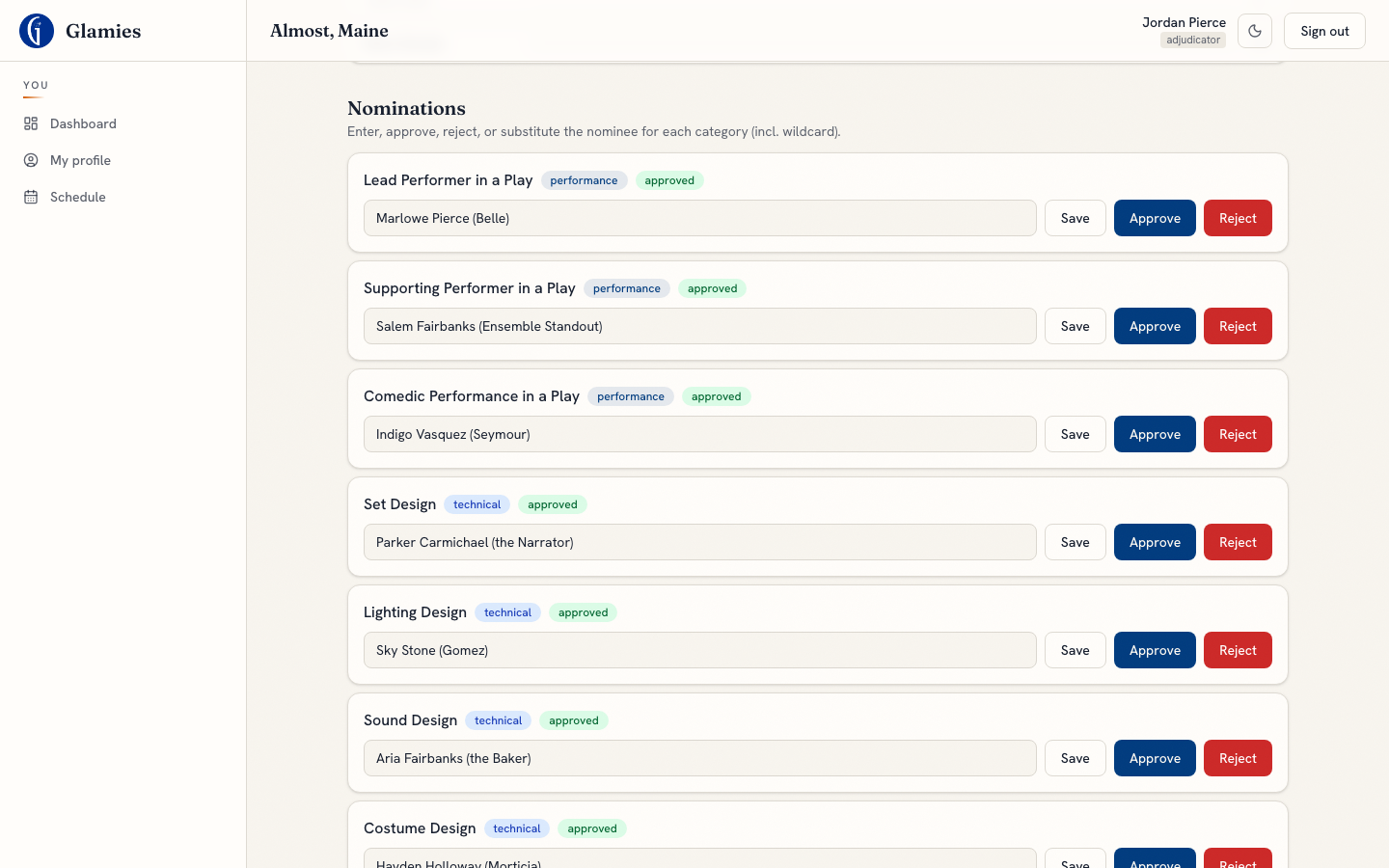
Step 4/5 — After talking with reviewers post-show, the adjudicator enters or edits the nominee name(s) for each award category (including the wildcard categories) and can Save, Approve, or Reject each one. The seed already pre-populates a placeholder nominee per category, which the adjudicator can correct here.
Nomination approved
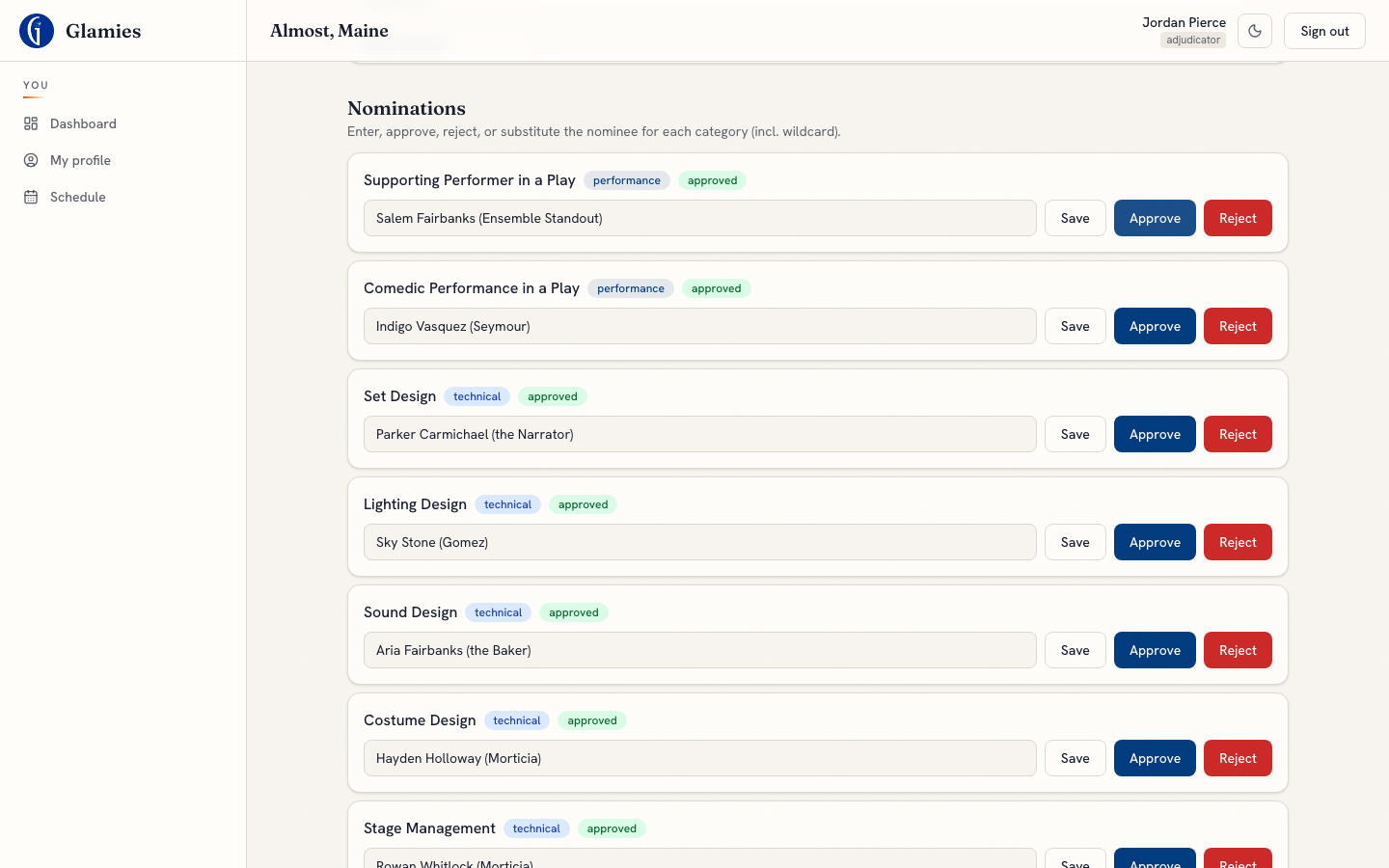
Approving a nomination flips its status badge to "approved" — this is the state the voting-day nomination/winner computation later reads from.
Scoring closed until the adjudicator opens it
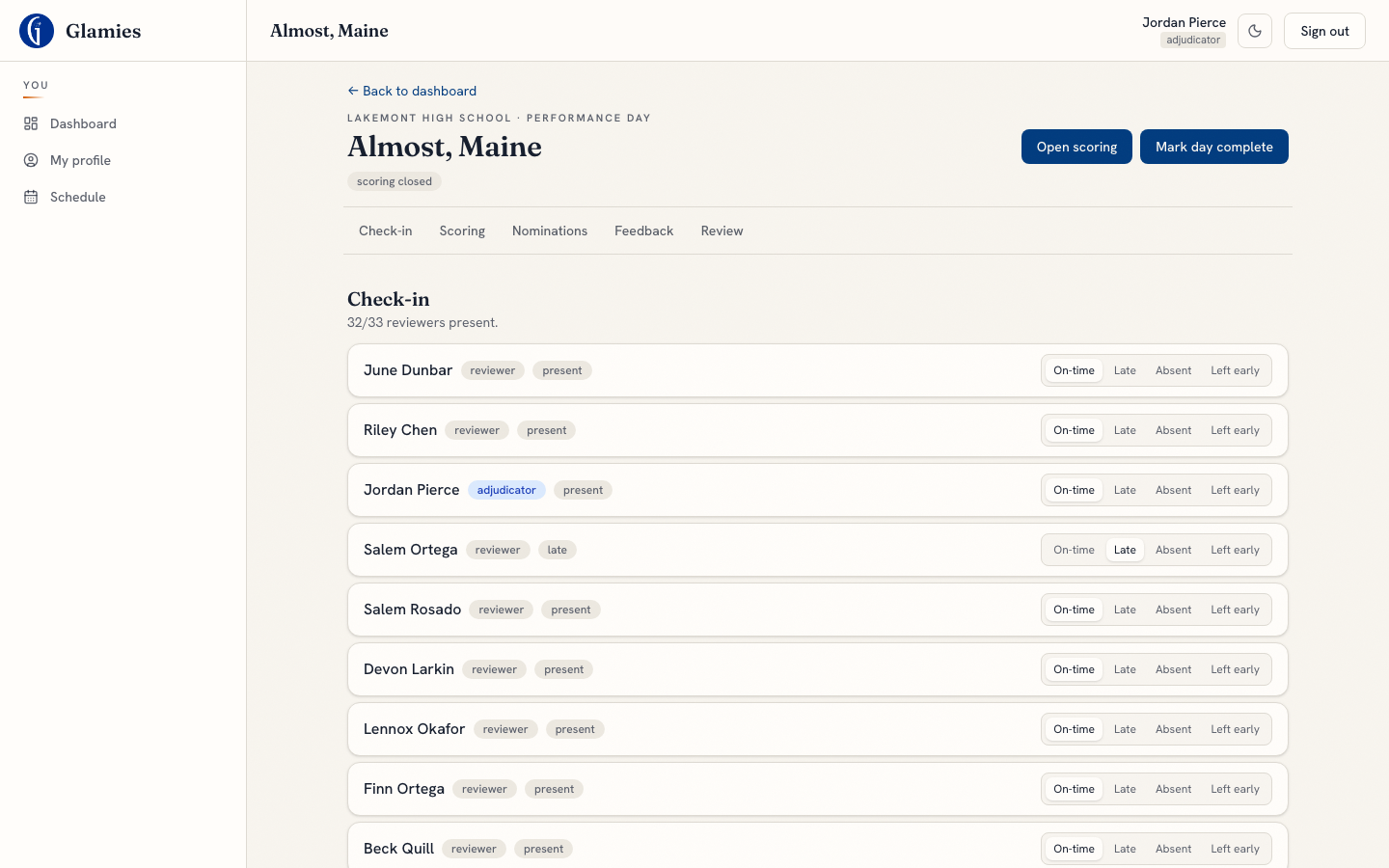
Step 6 — Before the adjudicator acts, the performance shows a "scoring closed" badge — reviewers cannot enter category scores yet, even though they're checked in.
Adjudicator opens category scoring
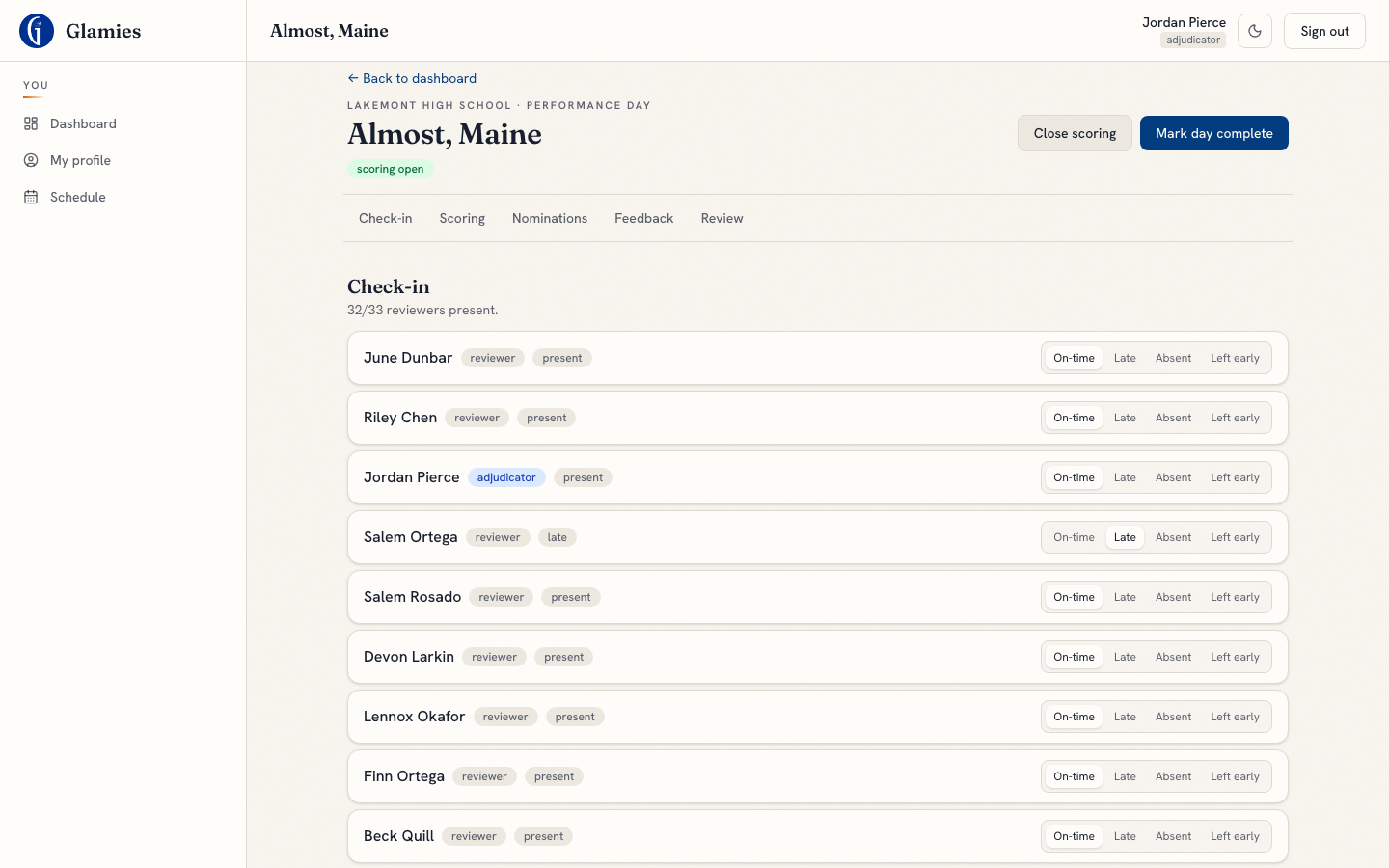
Clicking "Open scoring" sets performances.scoringOpenedAt — the phase gate reads this immediately, so reviewers can now submit scores. The badge flips to "scoring open".
Reviewer's scoring dashboard for the show
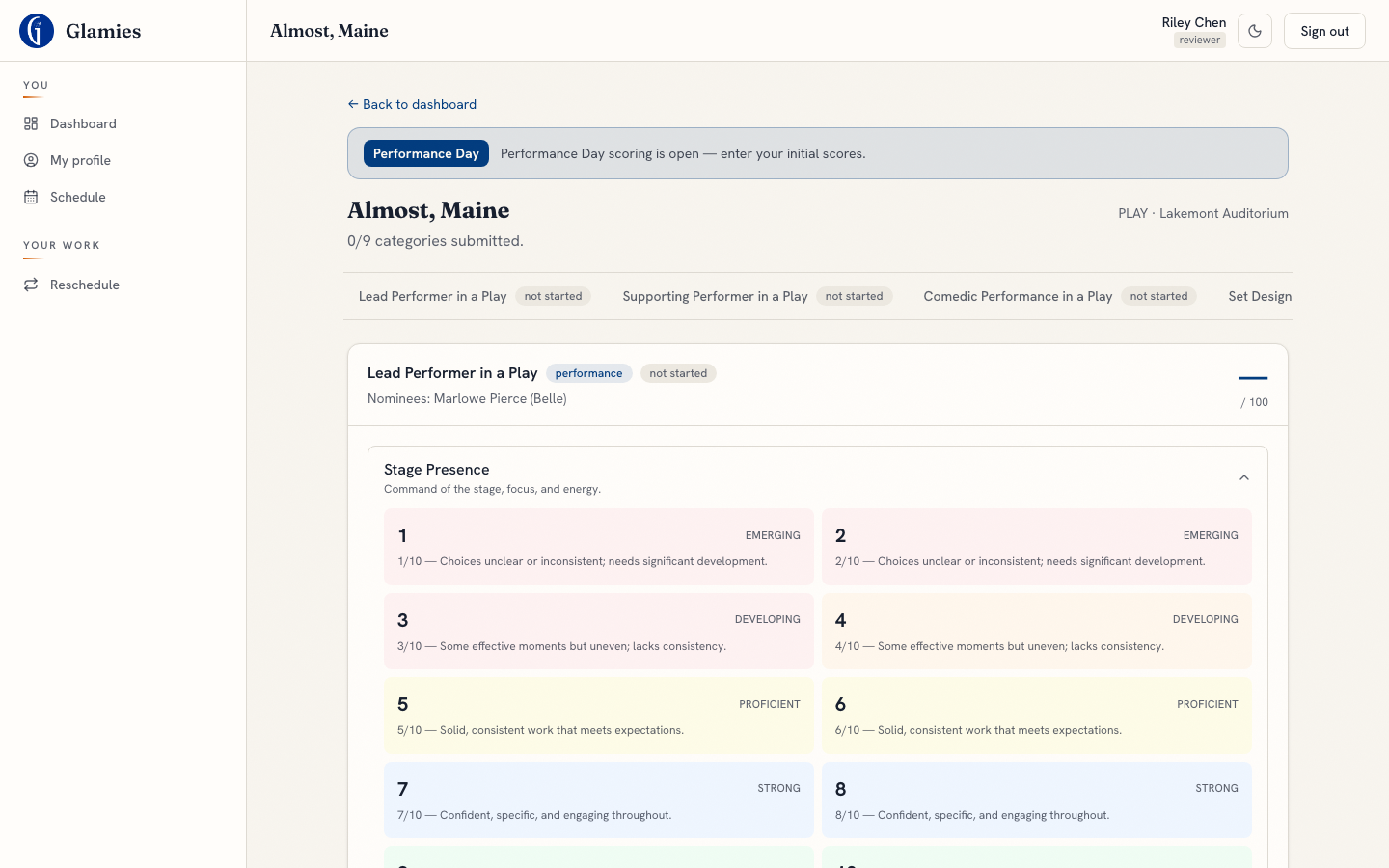
Step 7 — Now that scoring is open, the reviewer sees every award category assigned to this show with the full visible rubric — each of the ten score levels shown with its own description, so the reviewer scores against a shared standard rather than a bare number.
Reviewer scores each rubric criterion

Tapping a level (1–10) per criterion auto-computes the category's aggregate score in real time (average × 10, shown top-right of the card).
Scores submitted for adjudicator review
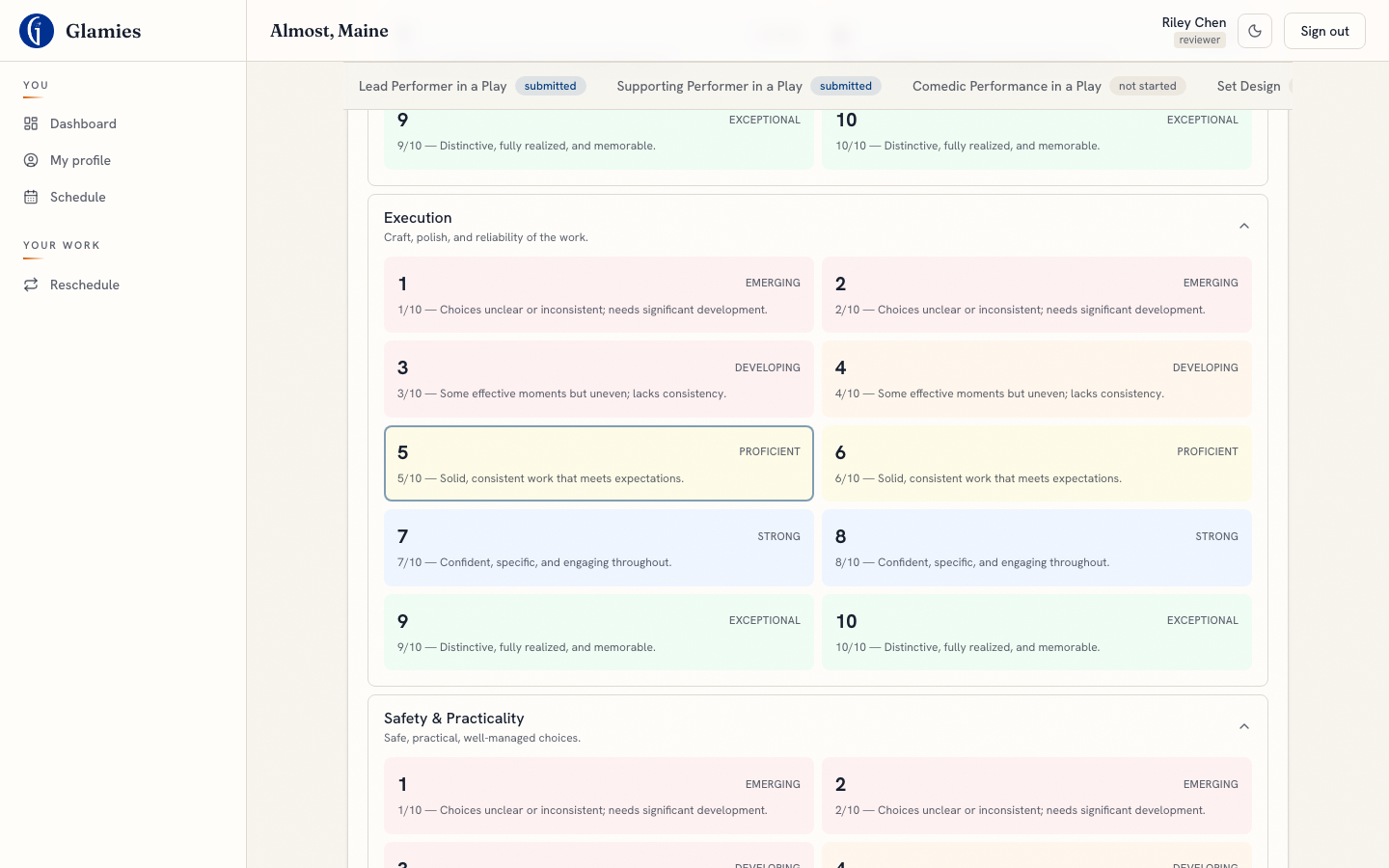
Step 8 — "Submit for review" locks in the score and flips its status badge to submitted. (Adjudicators/admins can also submit a score on a reviewer's behalf from the console — useful when a student can't finish on their phone.)
Adjudicator reviews submitted scores, grouped by reviewer
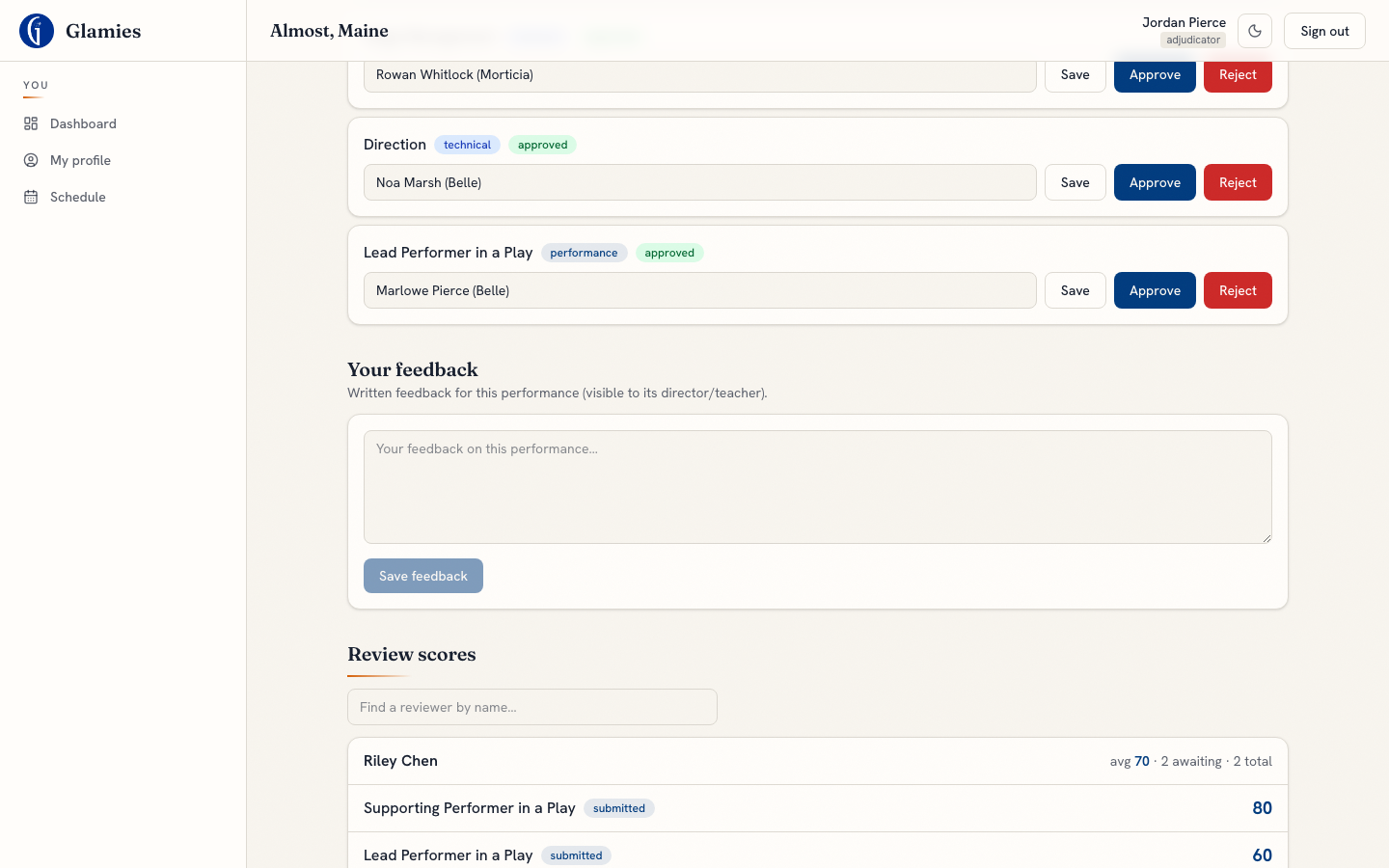
Step 9 — Submitted scores are grouped per reviewer with a running average, so the adjudicator can approve everything a reviewer submitted in one action, or reject individual categories.
Adjudicator finds a specific reviewer
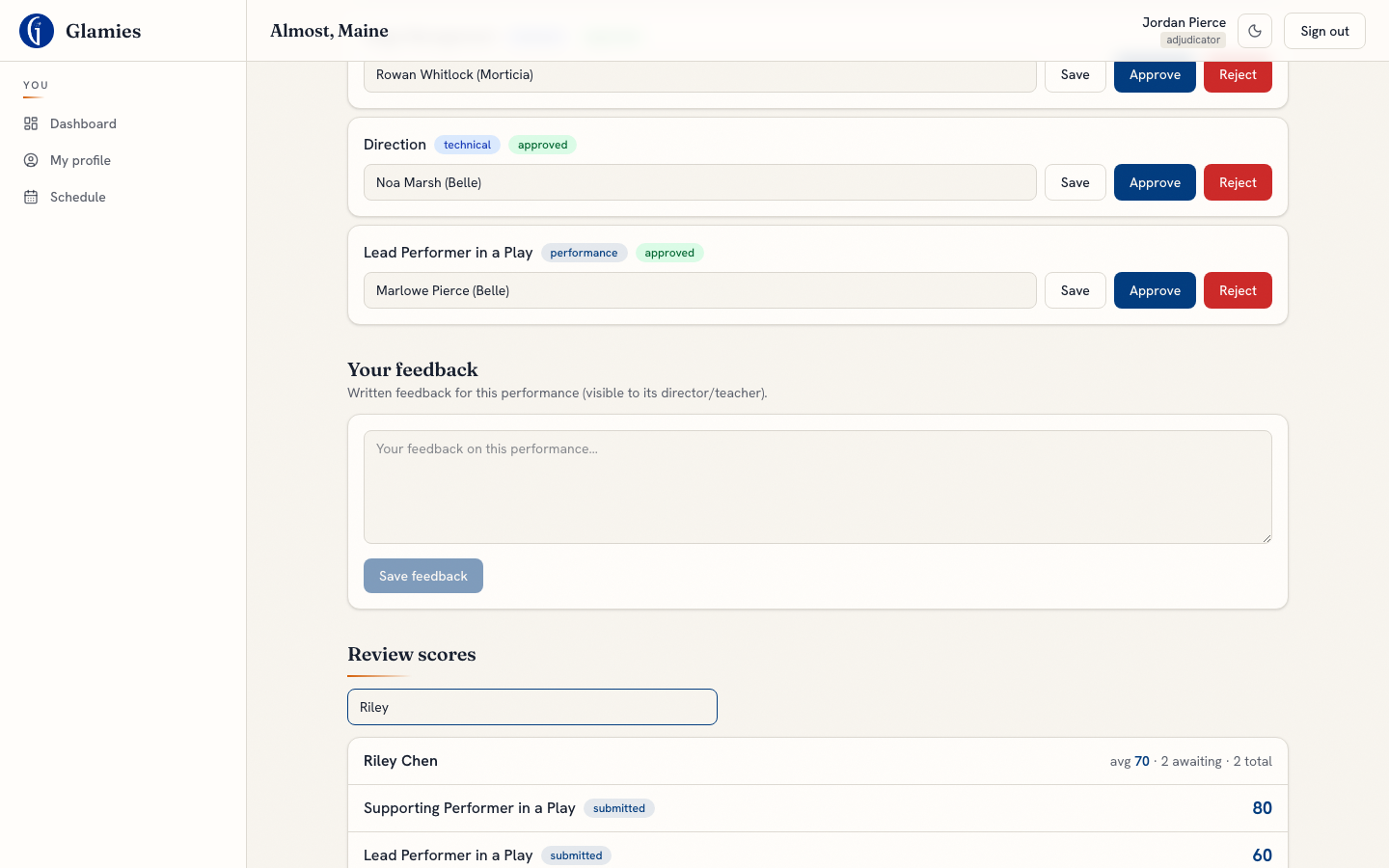
Step 9a — On performance day, an adjudicator who runs into a reviewer in person can search by name to pull up all of that reviewer's scores and their aggregate at a glance.
Rejecting with a written reason
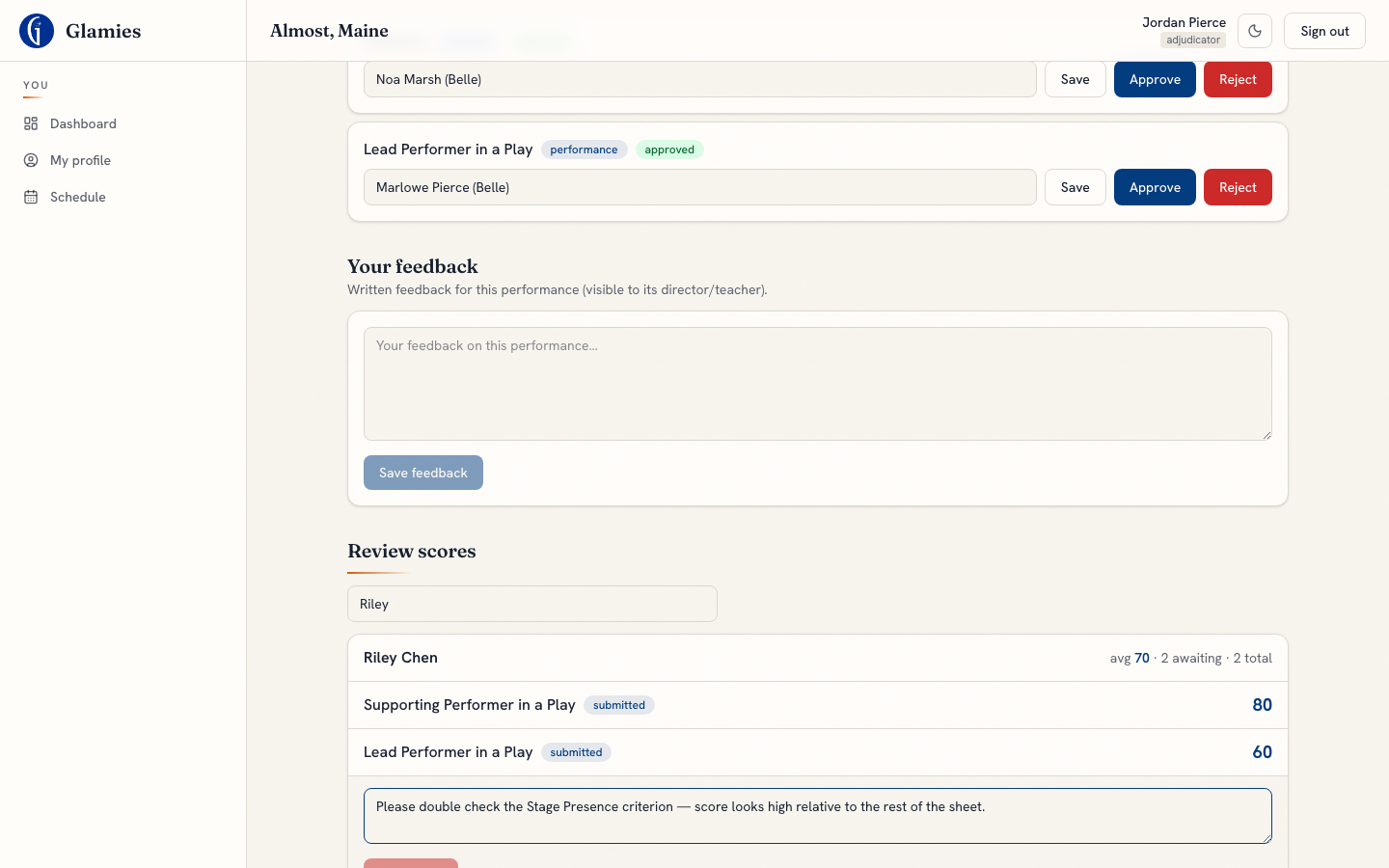
Step 10 — Rejecting a reviewer's submission requires a reason, sent back to the reviewer so they know exactly what to revisit before resubmitting.
Remaining scores approved
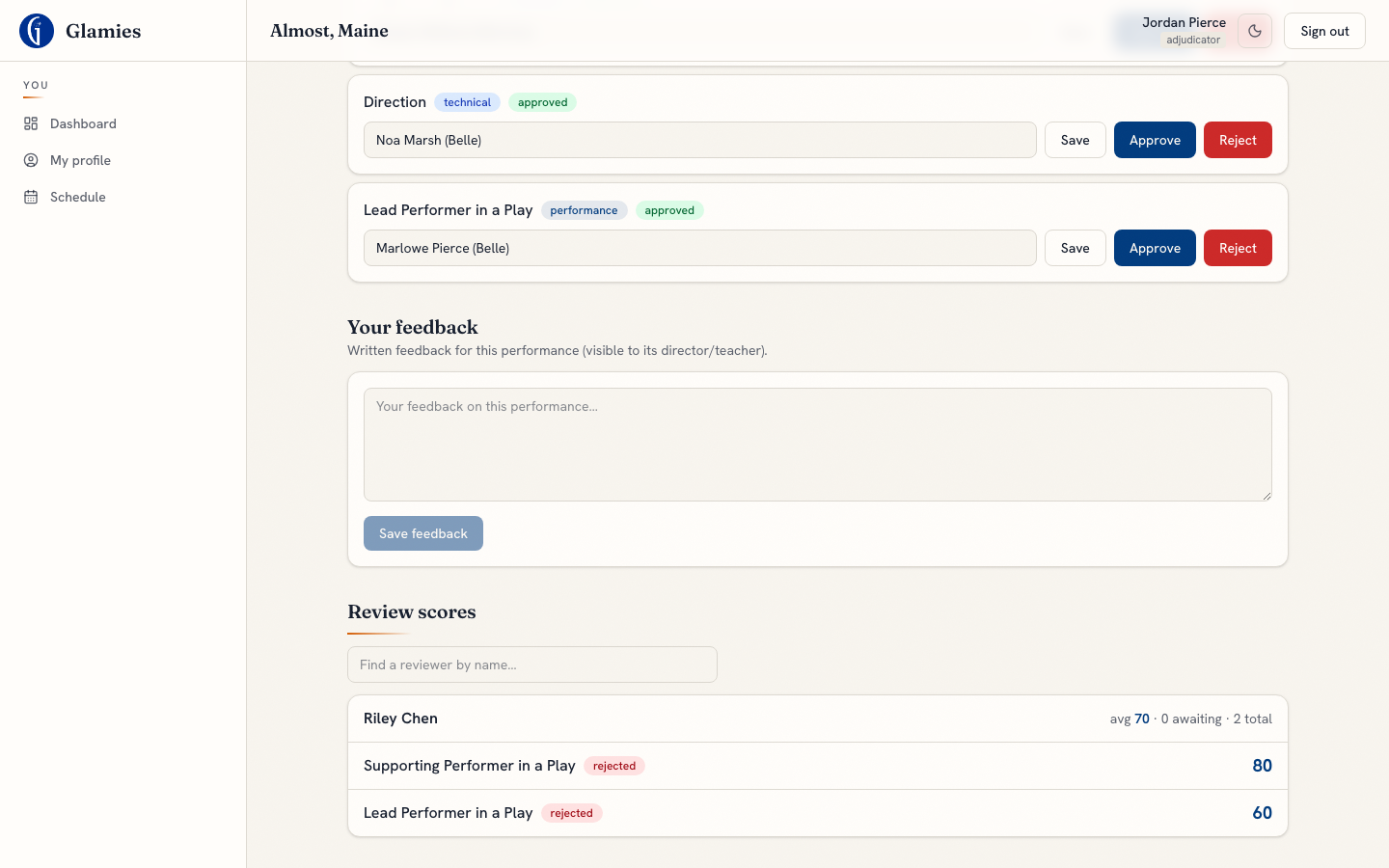
Approving finalizes the reviewer's remaining submitted scores for this show; a rejected category returns to the reviewer to fix and resubmit.
Progress across all attending reviewers
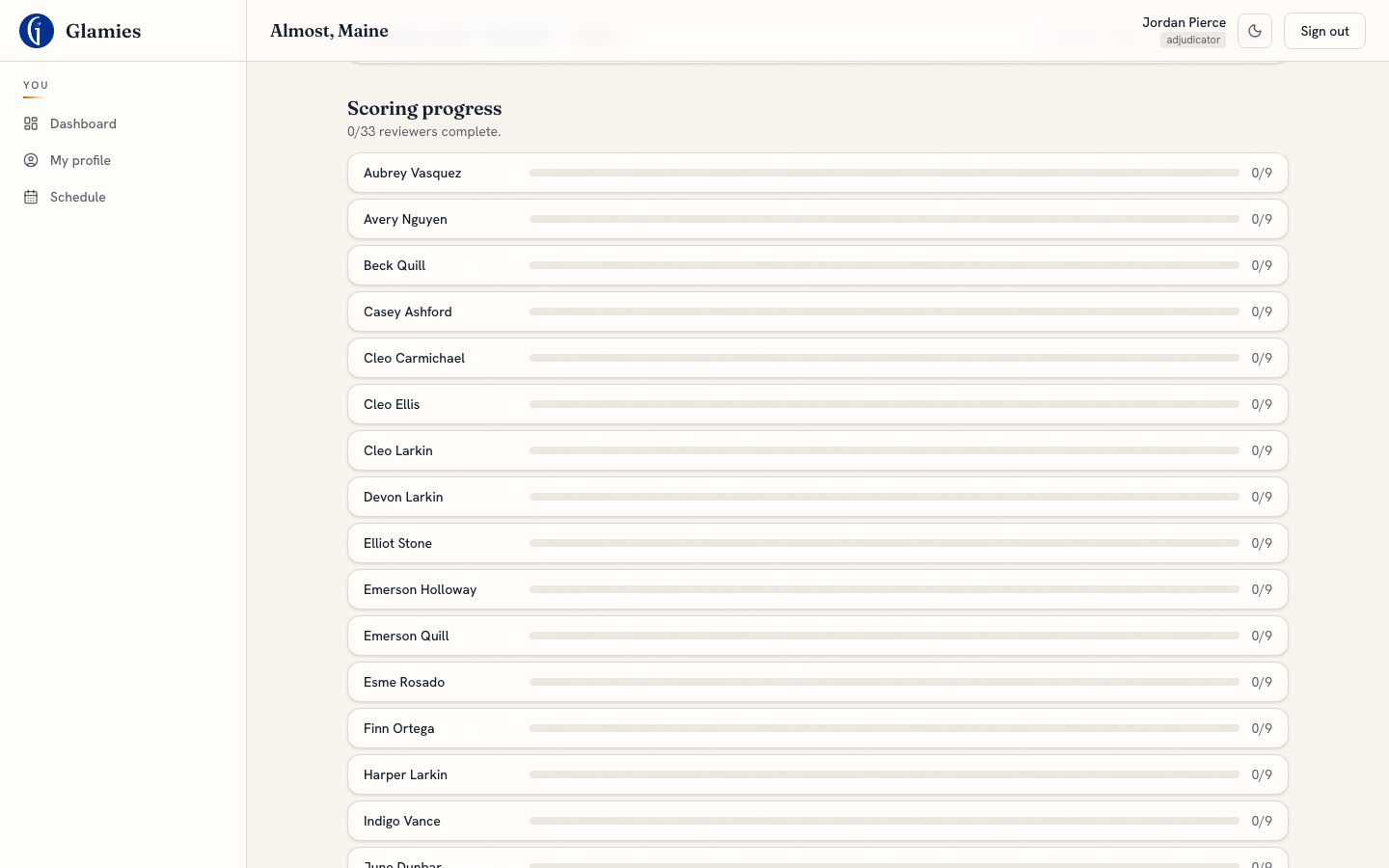
Step 11 — A per-reviewer progress bar (categories submitted / total) lets the adjudicator see at a glance who on the roster still has scoring left to do before performance day wraps.
Adjudicator marks performance-day complete
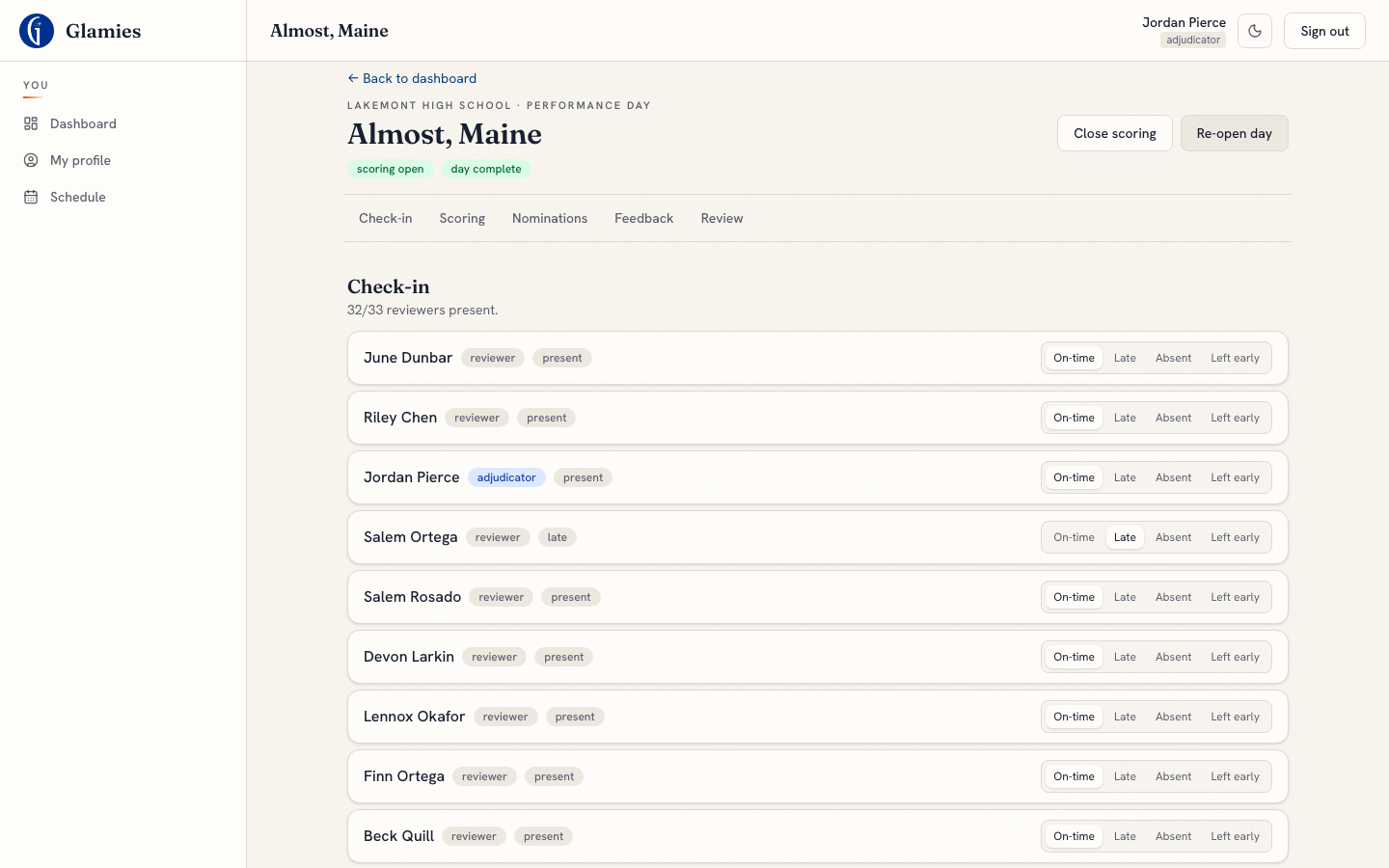
Step 12 — Marking the day complete sets performances.pd_completed_at, locking further performance-day scoring (reviewers now see "Performance-day scoring is complete"). The adjudicator can unmark it if needed to reopen for corrections.
Reviewer writes a critical show response
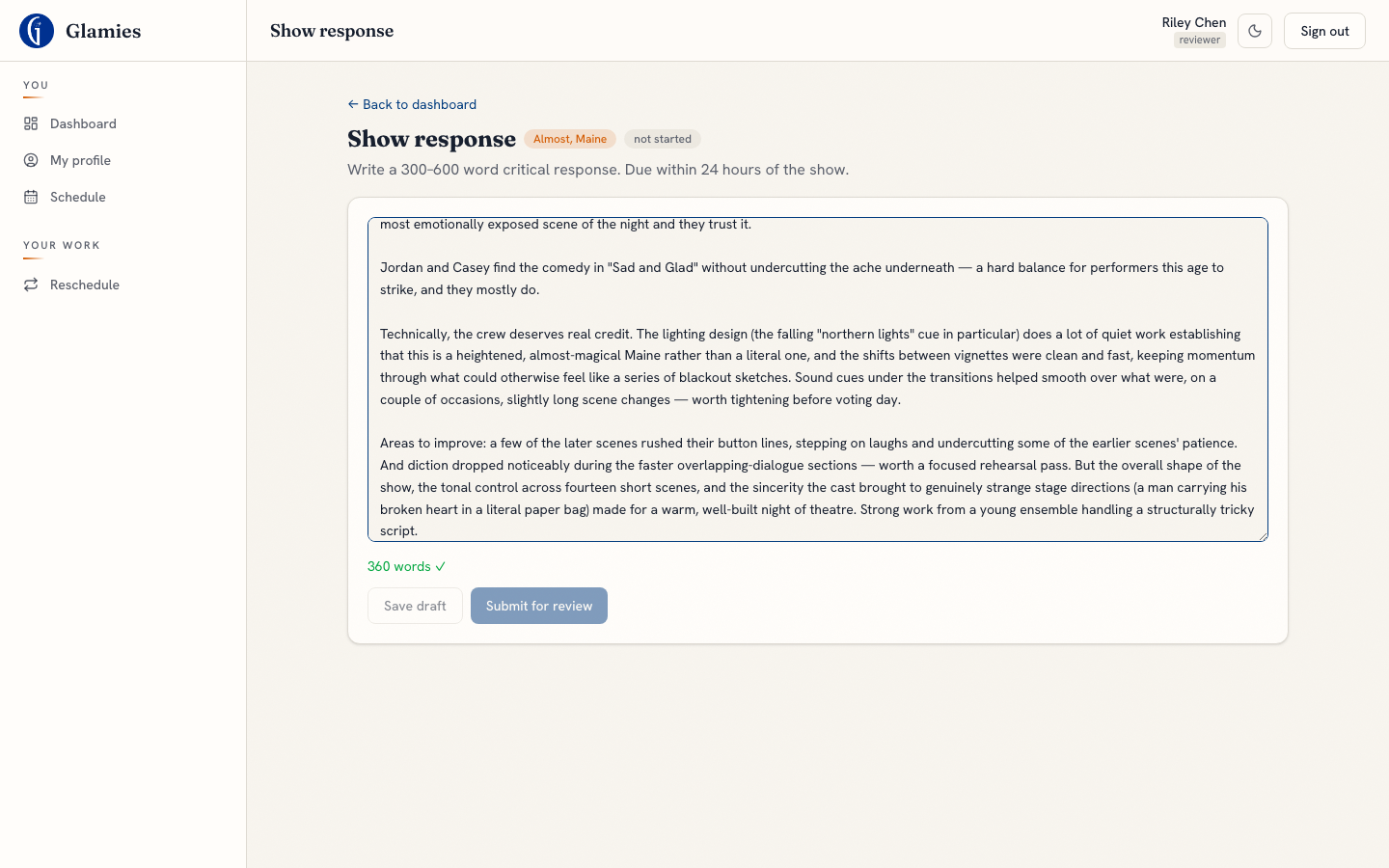
Step 13 — Approved reviewers write a 300–600 word critical response to the show, due within 24 hours. A live word counter confirms the response is in range before it can be submitted.
Response submitted
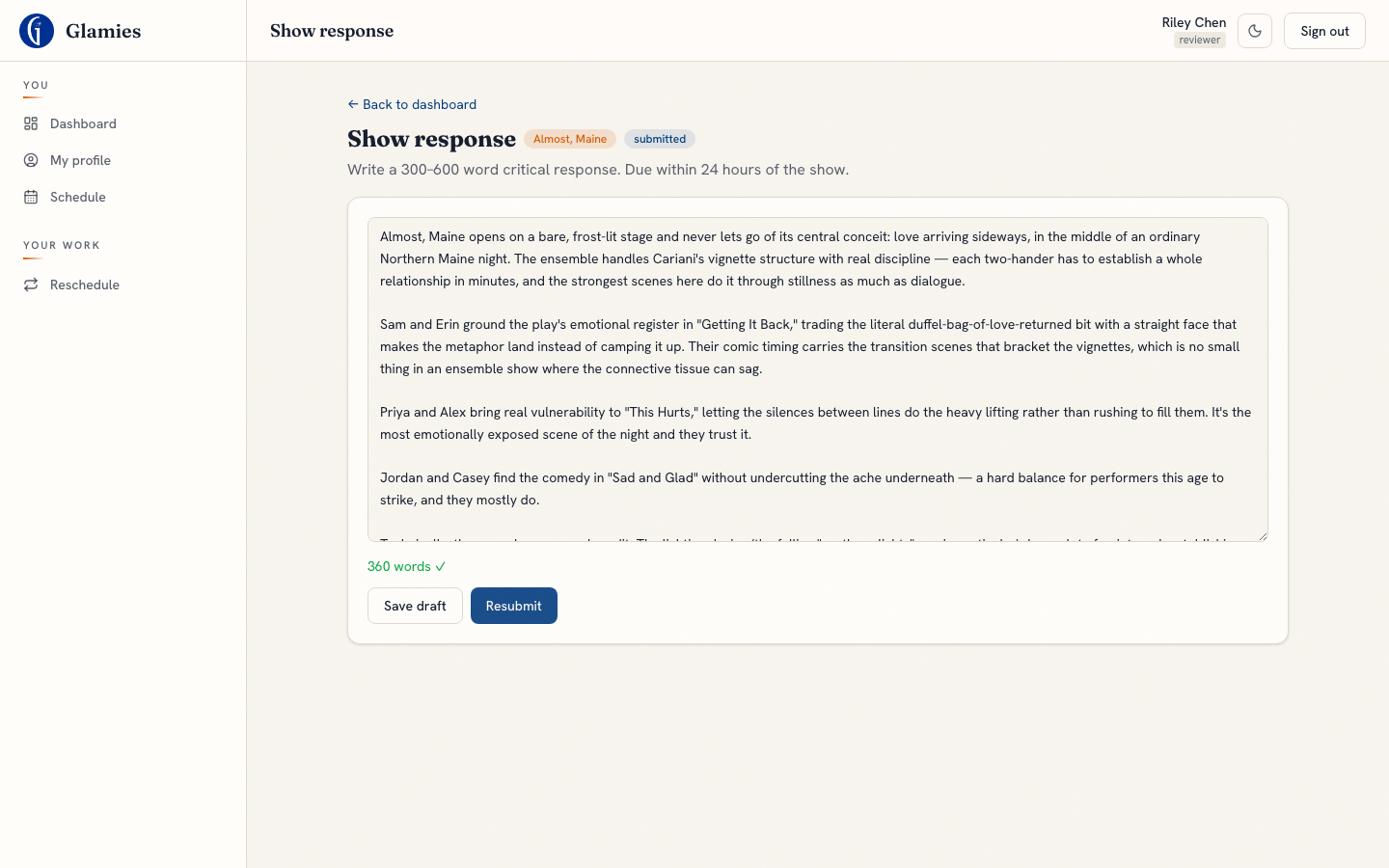
Once submitted, the response status badge flips and it enters the adjudicator's grading queue.
Adjudicator grades the response — reviewer identity anonymized
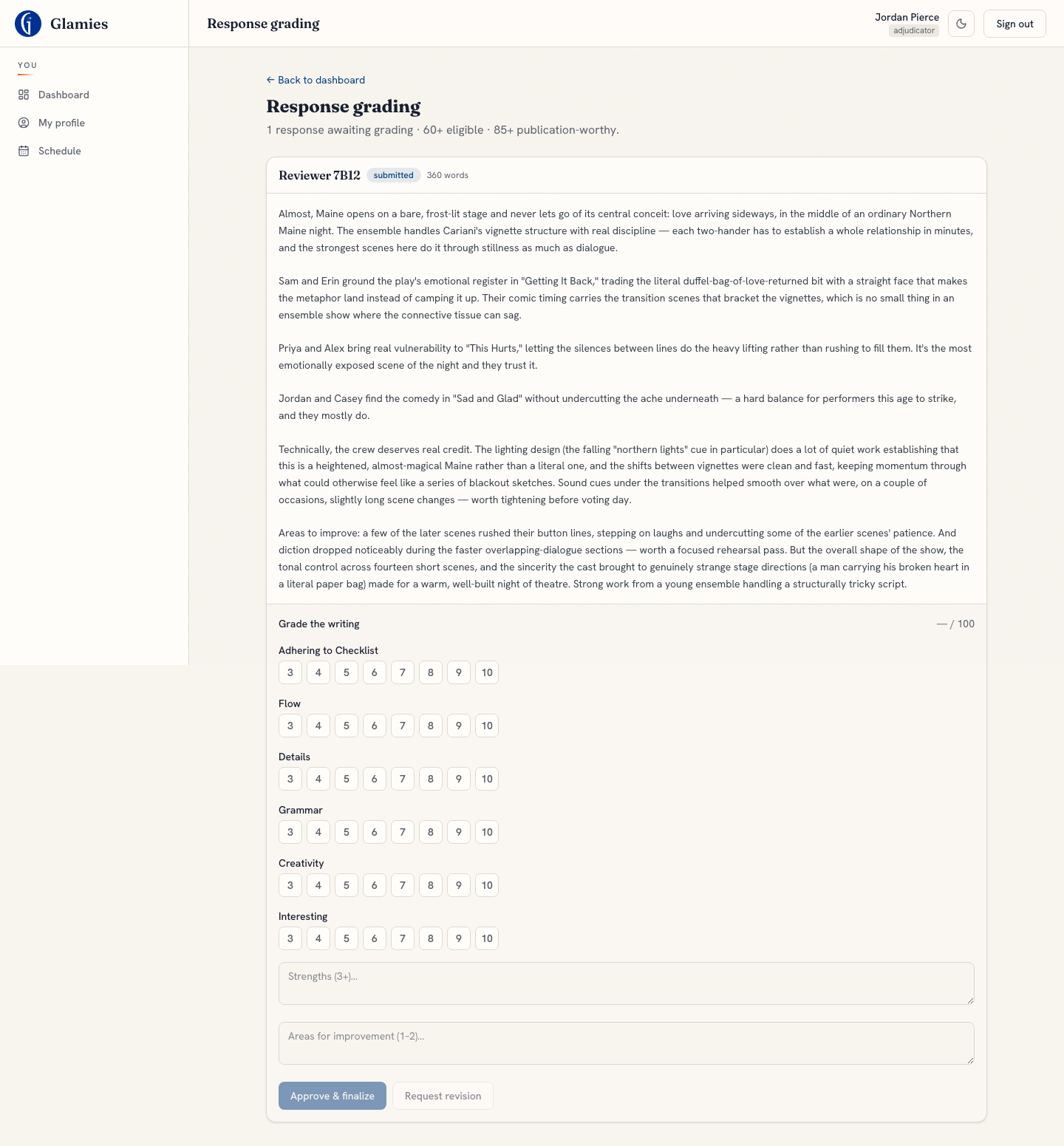
Step 14 — Grading shows the response text plus a rubric-based scorer (60+ = eligible, 85+ = publication-worthy), but the byline is an anonymized alias rather than the reviewer's real name — the identity is only ever resolved server-side, preventing bias in grading.
Response approved and finalized
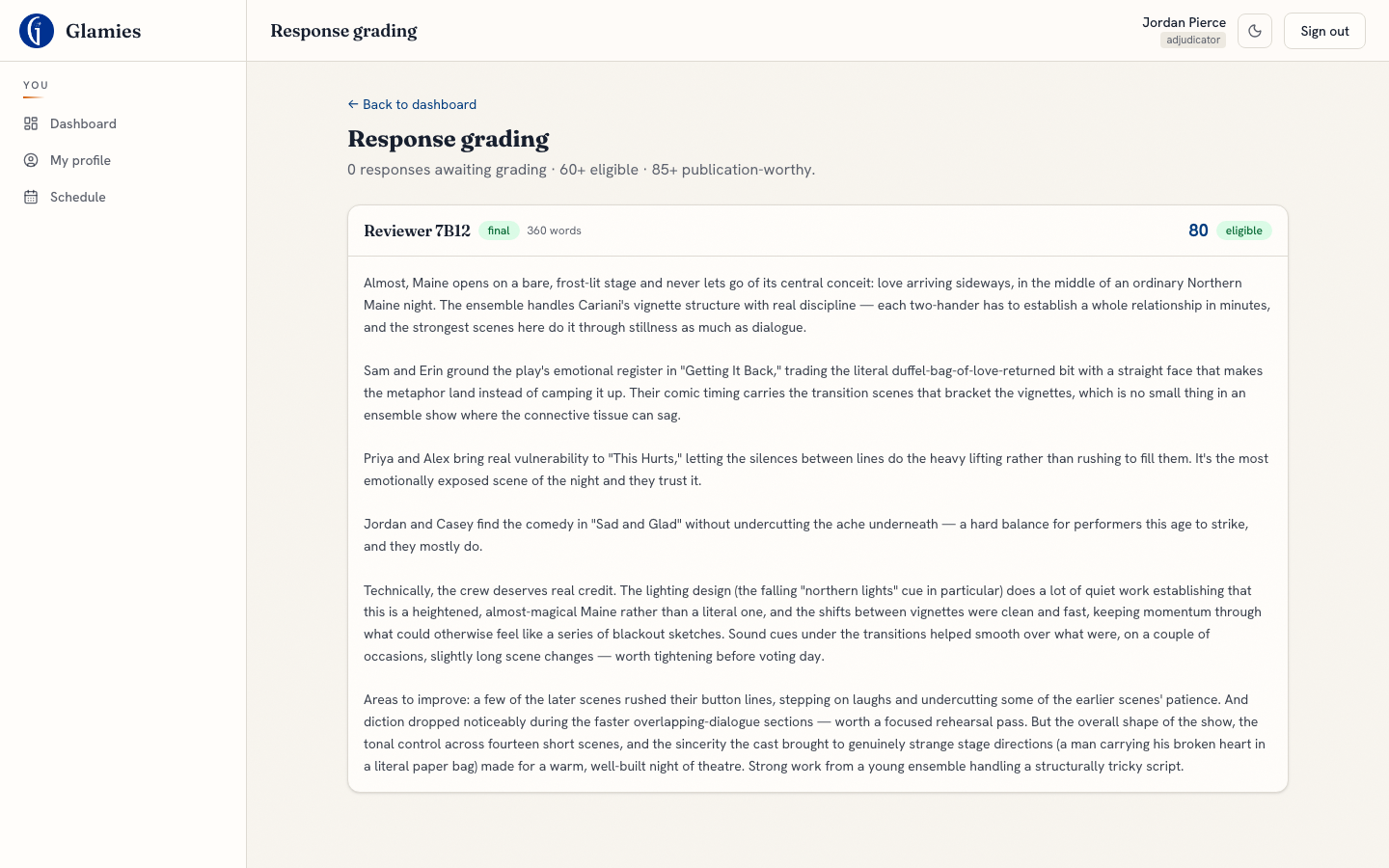
"Approve & finalize" locks in the response's rubric score and eligibility/publishable flags.
Adjudicator enters performance feedback
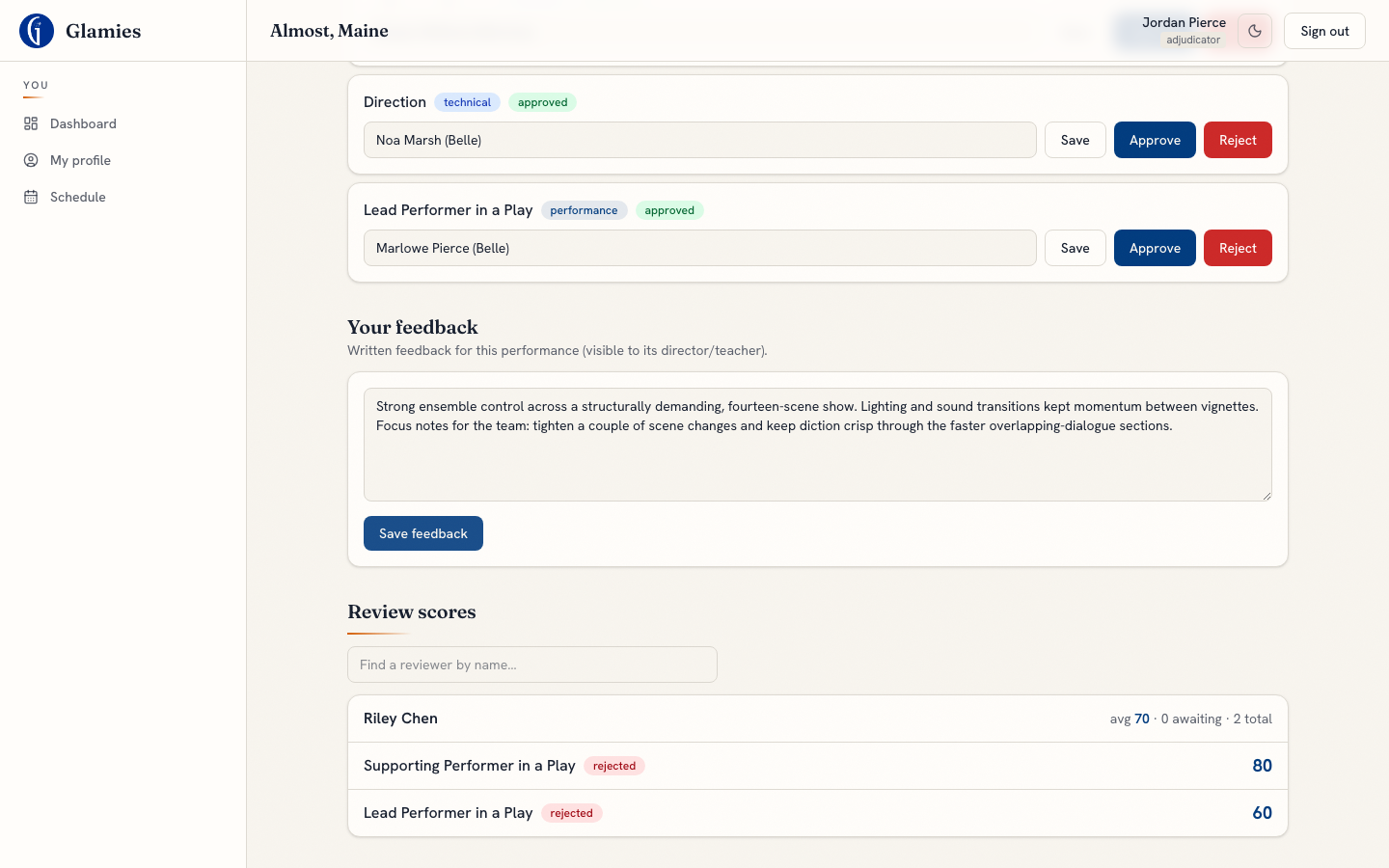
Step 15 — Separately from grading individual reviewer responses, the adjudicator writes their own feedback on the performance as a whole. This is what the show's director/teacher will see (Step 18).
Chapter admin sees progress across every performance
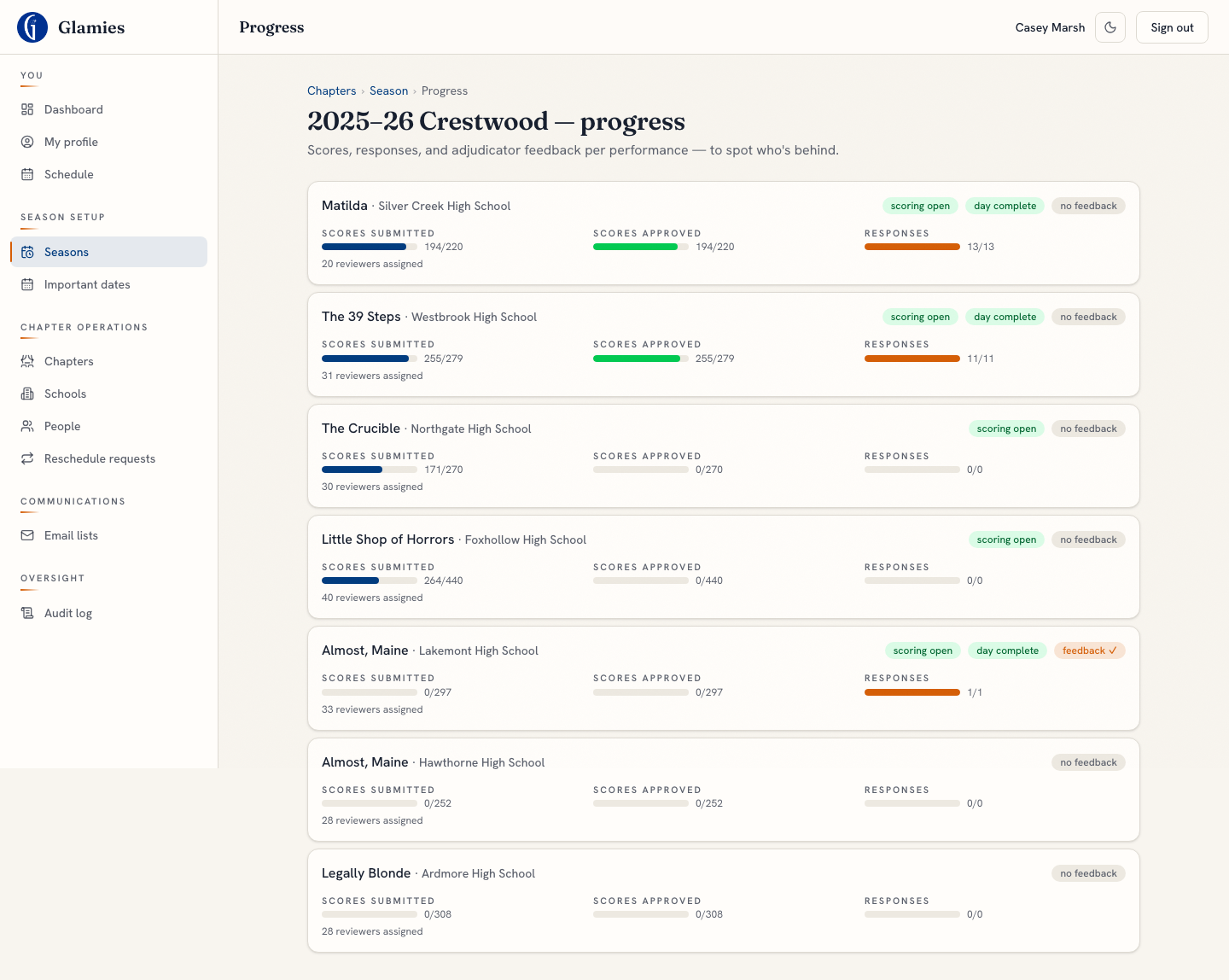
Step 16 — A season-wide progress view lets the chapter admin spot which performances are behind on scores, responses, or adjudicator feedback — including Almost, Maine's just-completed performance day.
Show director sees their own team's progress
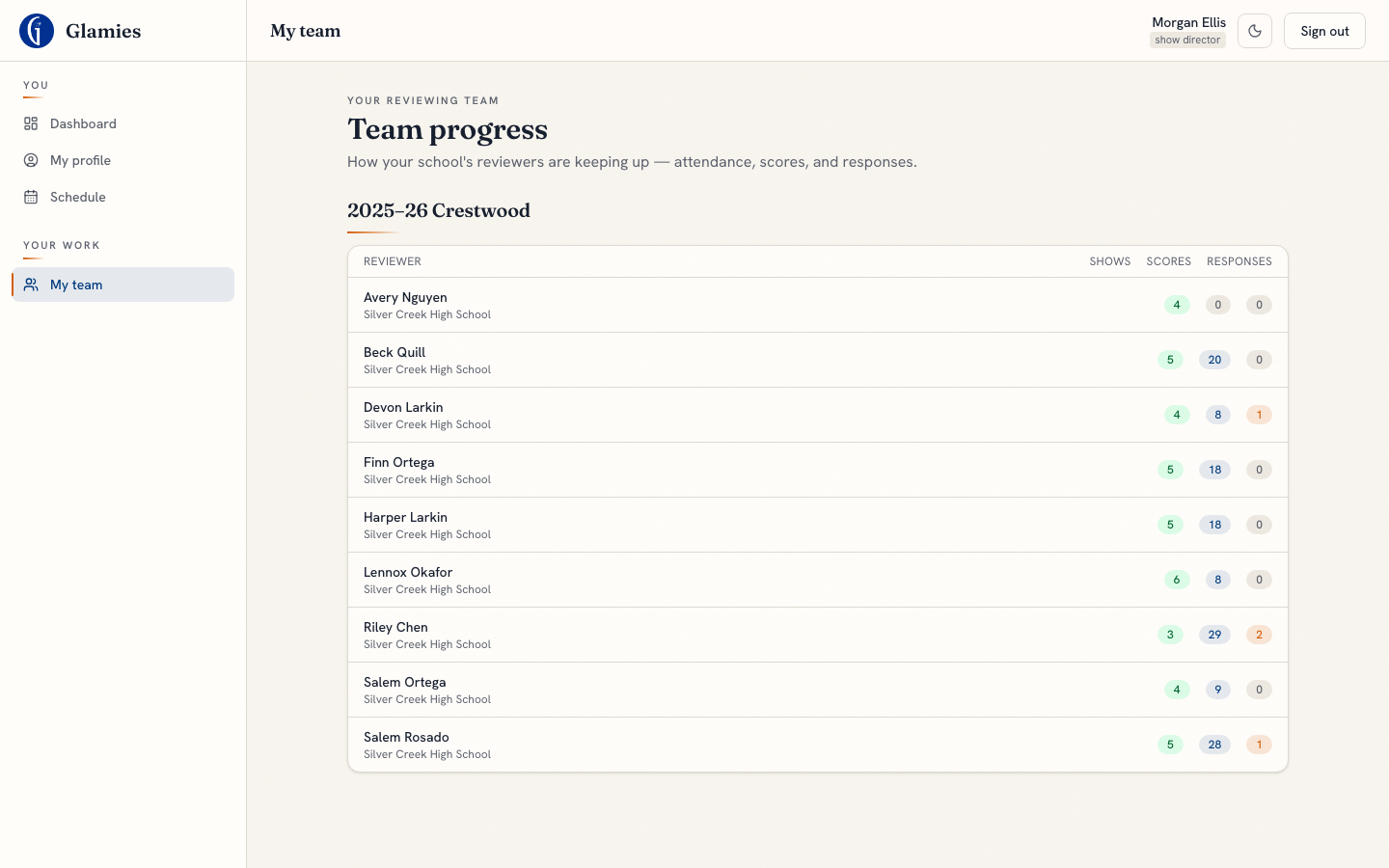
Step 17 — The director's "My team" view lists their school's reviewers by name (no anonymity here — this is the director's own team) with shows attended, scores submitted, and responses submitted per person.
Director sees named responses & feedback for their own show
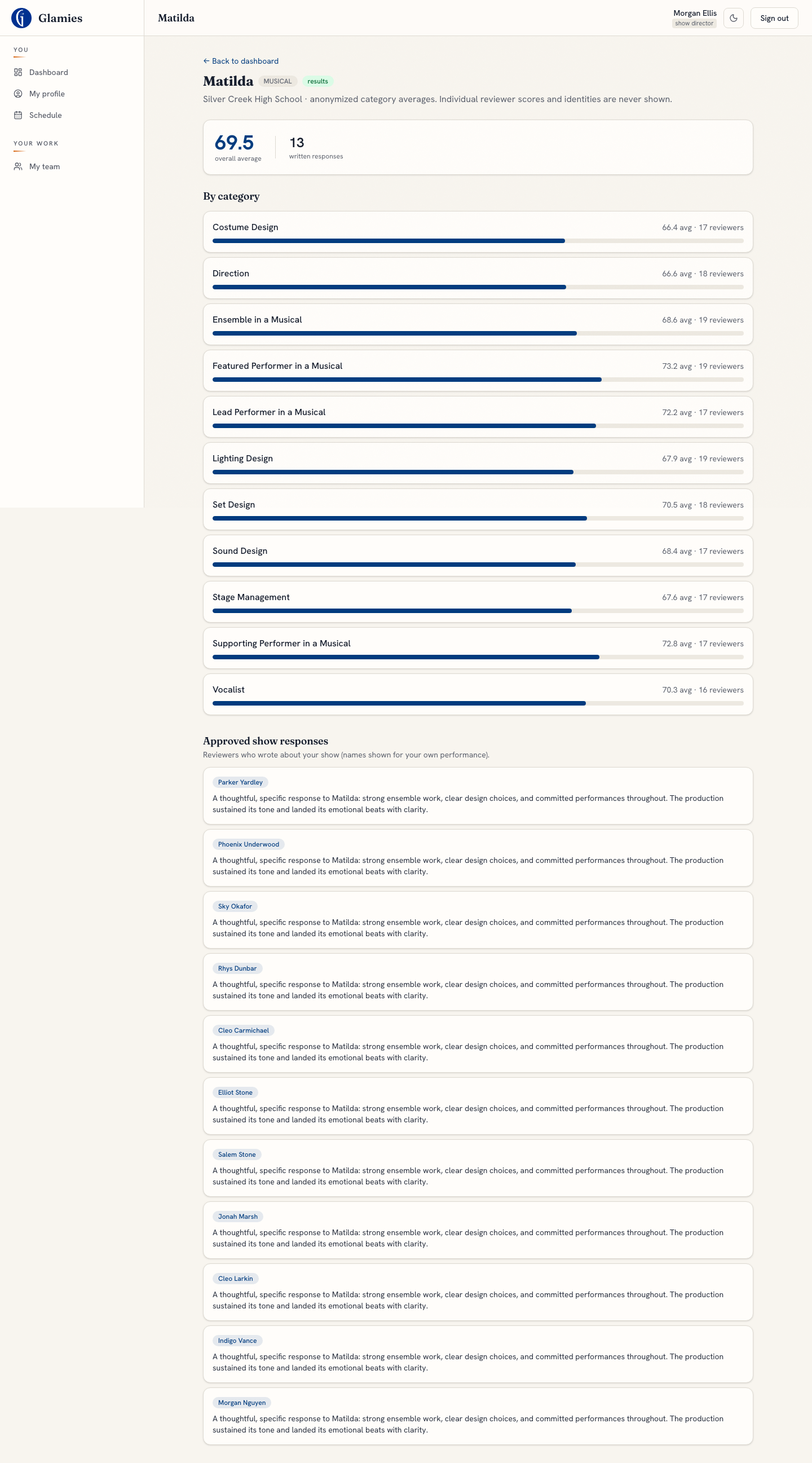
Step 18 — For their own performance (Matilda, completed), the director sees anonymized category-average scores plus approved show responses and adjudicator feedback — and, unlike the anonymized aggregates, responses about their own show are shown with the reviewer's name attached.
Admin console: categories, scores, and responses for a show
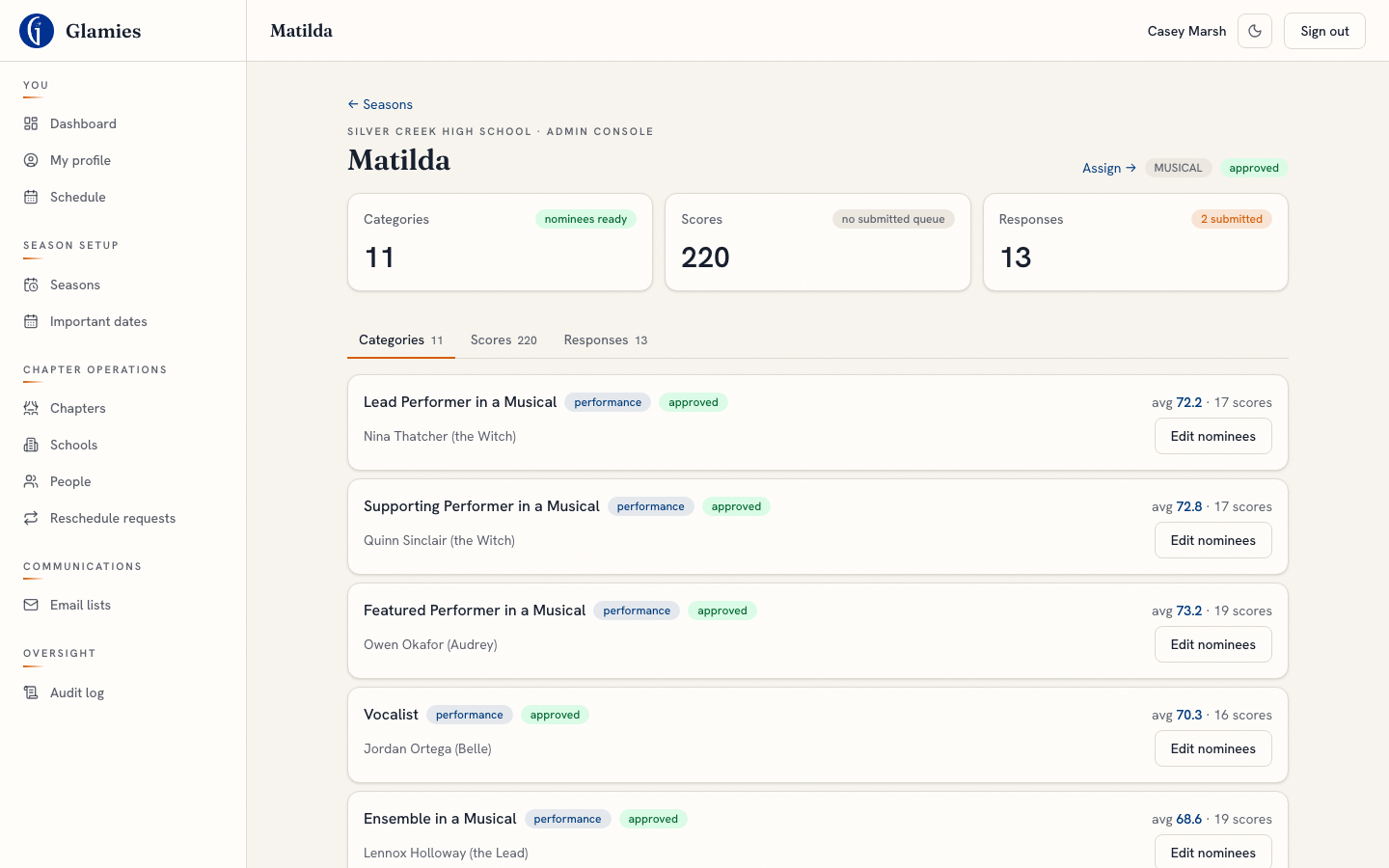
Step 19 — The admin console for a completed performance (Matilda) gives full drill-down: a Categories tab (with nominee editing — this is also where a chapter admin can edit/approve any nomination, even after scoring), a Scores tab, and a Responses tab.
Drilling into one reviewer's score
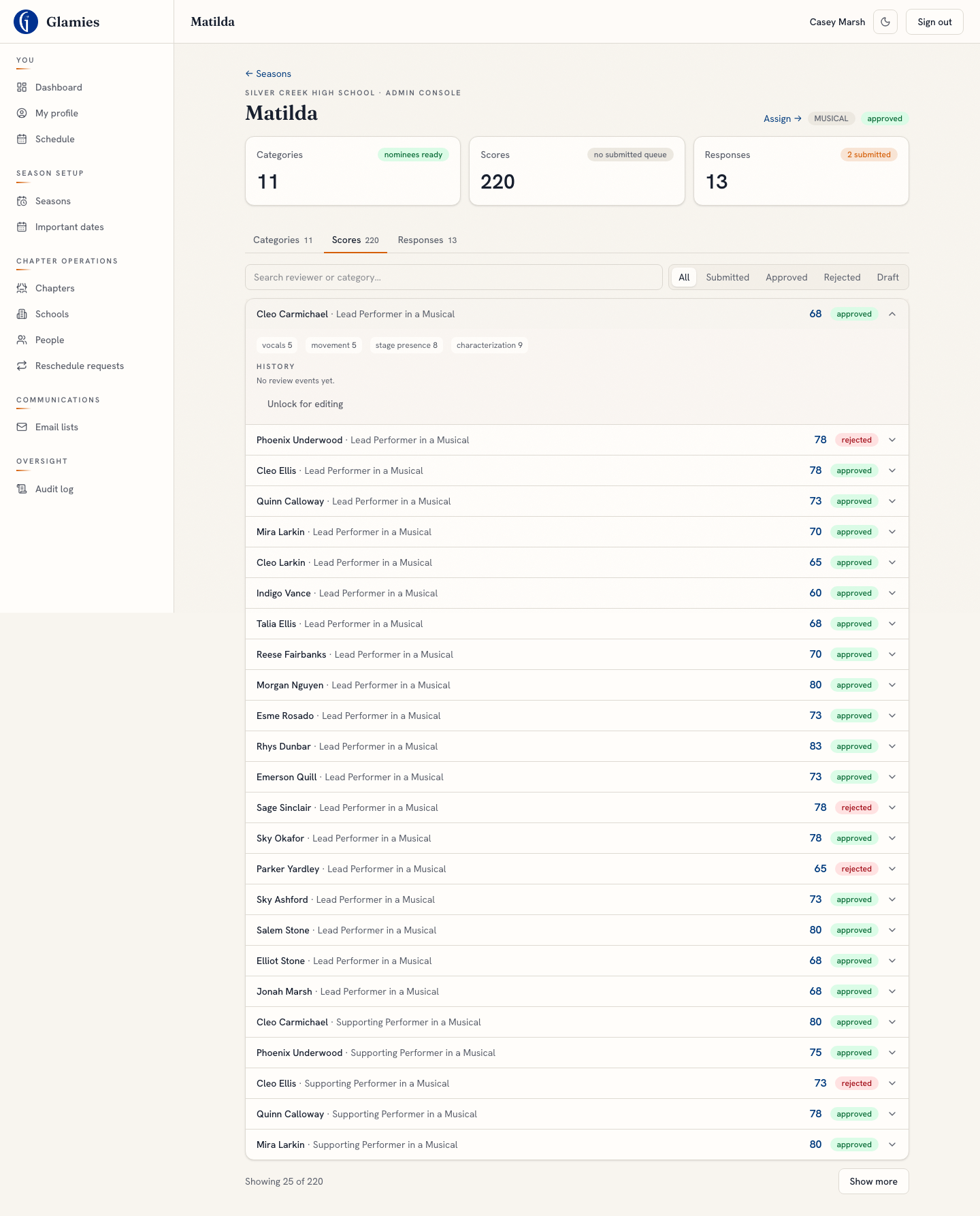
Expanding a score row shows the full criterion breakdown and its complete audit history (submit → approve/reject events with actor + timestamp) — the aggregate scoring + drill-down that closes out the 19-step performance-day flow.